Sales Igniter Chat: AI for tickets, orders and rentals
Help Desk puts the AI agent you already set up for chat to work on tickets: it drafts replies for your team to check, keeps a short summary of long tickets and, only when you switch it on, answers simple first messages itself. Next to each ticket, the customer panel shows what the customer bought and rented, and the ticket bar says which order or booking the ticket is about.
The AI parts need the AI agent switched on with a key and budget left (Settings › AI agent; see Setting up Live Chat). Everything they spend counts against the same monthly AI budget as chat answers. When the budget is used up, drafts and summaries stop until next month and new tickets wait for your team as usual.
Draft reply
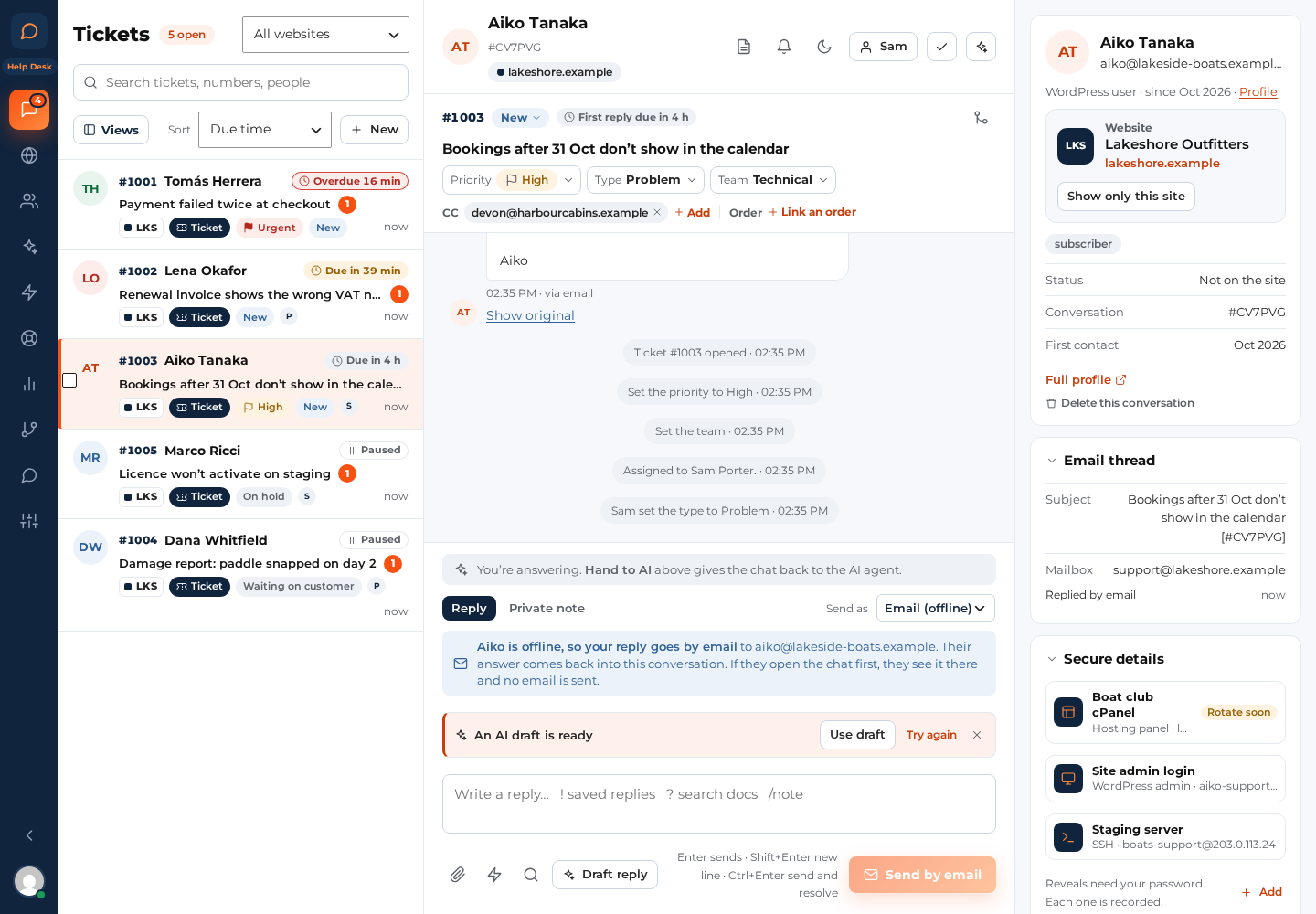
In a ticket, the reply box has a Draft reply button. The AI writes an answer for you to check, edit and send. It is never sent by itself.
- What it reads: your knowledge (the same pages, docs and Answers as chat answers), the ticket’s messages and form answers, and the customer’s orders, licences, subscriptions and rentals. It may check availability and prices with the Rentals & Bookings tools, which only read: a draft never books, holds or changes anything.
- What it never sees: Secure details. Passwords and keys pasted into messages are masked before anything goes to the AI, and so are email addresses, phone numbers and other personal details while PII masking is on (the default).
- Amounts are checked. When a draft names a price or an amount that its sources don’t back up, it is held back with “The draft named an amount the sources don’t back up, so it was held back. Please write this reply yourself.”
- When the draft is ready it appears above the reply box: Use draft puts it in the box for you to edit, Try again writes a new one, Discard throws it away. Under it: “Drafted by the AI. Check it before you send.”
- When the customer writes again after the draft was made, the banner says The customer wrote since this draft. Use Try again for a draft that answers the new message.
- Each person can ask for up to 20 drafts in 10 minutes.
A draft for every new ticket (Help Desk › Tickets › AI)
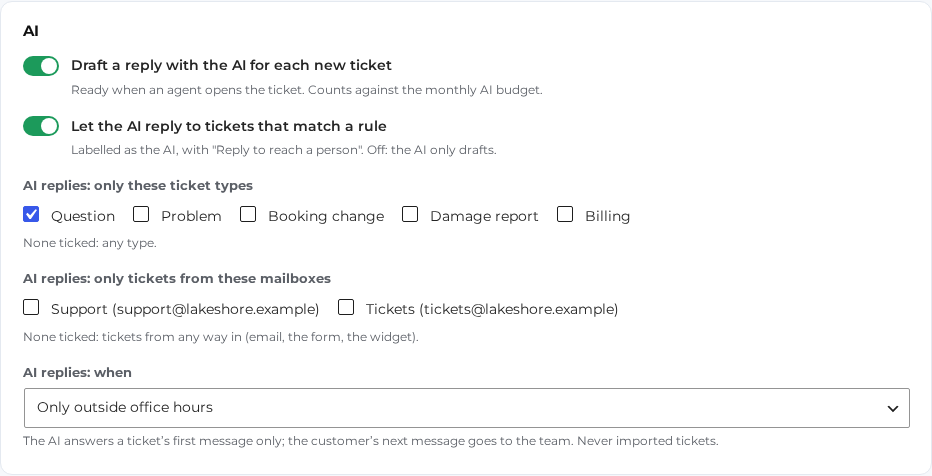
Draft a reply with the AI for each new ticket is on by default. The AI drafts a reply for new tickets nobody has answered yet, so the draft is ready when someone opens the ticket. It drafts for tickets from the last 24 hours only (switching it on doesn’t draft for your whole backlog), up to five a minute, and never for imported or merged tickets.
Reports count how many drafts were made, used as written, edited before sending and thrown away. The text of a draft is deleted after 30 days; the count stays for Reports.
Ticket summaries
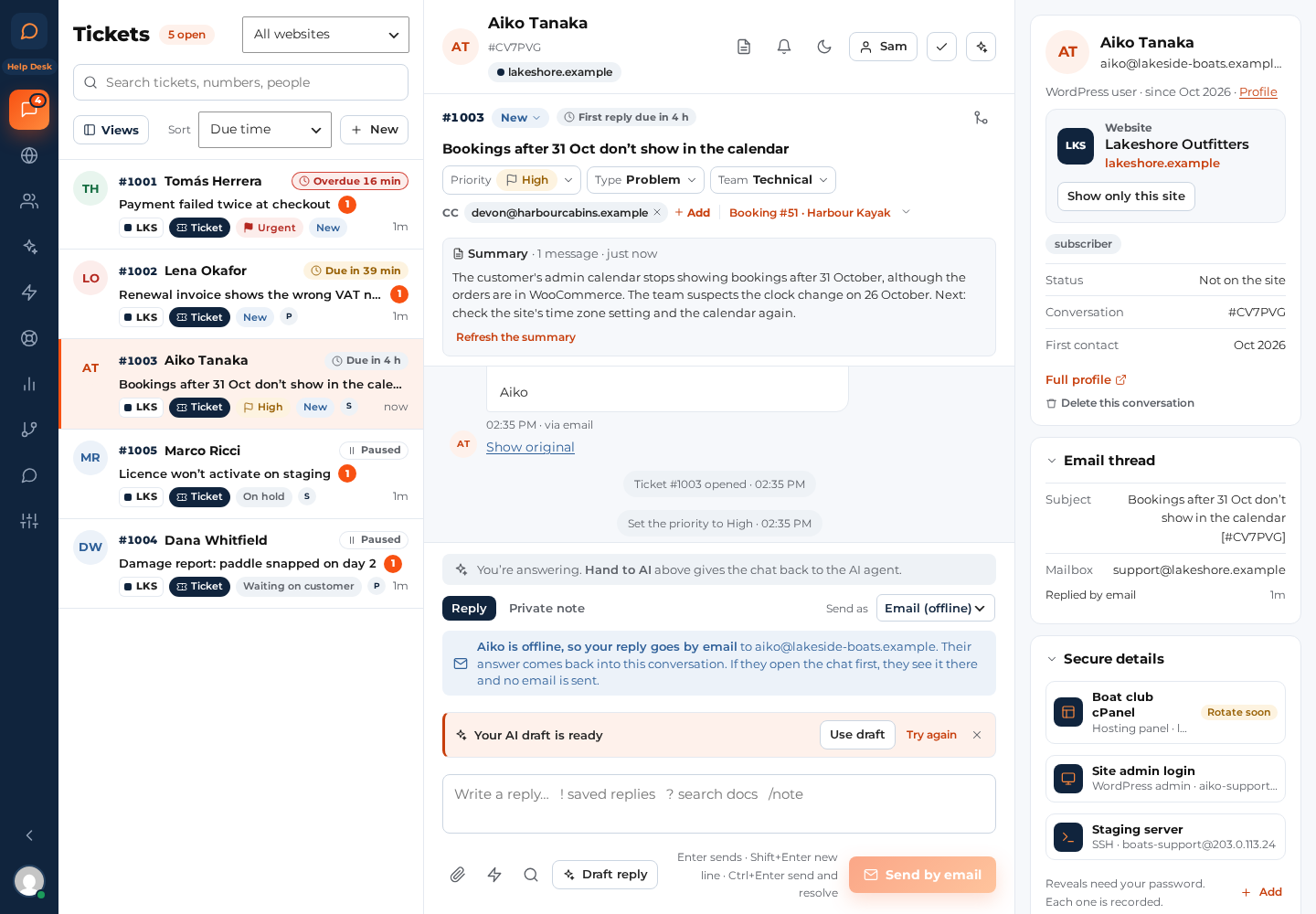
A ticket with a long back and forth gets a short summary at the top of the ticket bar: Summary with the number of messages it covers and when it was made. Click it to read it.
- Made by itself for tickets with 8 or more public messages (notes don’t count), and kept current: after 3 new public messages it says “new messages since” and is made again.
- When the AI hands a chat over and the chat becomes a ticket, the hand-over summary becomes the ticket’s summary.
- Summarise in the conversation header, or Refresh the summary under the summary, makes one now (up to 20 in 10 minutes per person).
Summaries follow the same rules as drafts: no Secure details, masked personal details, inside the monthly budget.
AI replies to tickets (off by default)
When you switch it on, the AI answers a ticket’s first message itself when the ticket matches your rule. Everything else stays with your team.
Help Desk › Tickets › AI:
- Let the AI reply to tickets that match a rule: off by default. Off, the AI only drafts.
- AI replies: only these ticket types: tick the types the AI may answer, for example Question. None ticked: any type.
- AI replies: only tickets from these mailboxes: tick the mailboxes. None ticked: any way in (email, the ticket form, the chat widget’s “Leave a request”).
- AI replies: when: Any time, or Only outside office hours (your office hours in Routing and hours).
How it behaves:
- The AI answers the first message only. Its reply ends with “This reply is from our AI assistant. Reply to this email to reach a person.” The customer’s next message goes to your team.
- It answers new tickets only (from the last 2 hours when you switch it on), up to five a minute.
- It never answers imported tickets, follow-ups, merged tickets, tickets your team has already replied to, chats that became tickets, or tickets your team opened with New.
- When the AI can’t answer from your knowledge, or the budget is used up, the ticket goes to your team unanswered.
- The answer uses the same checks as AI answers in chat and email: sources, the amount check and the link guard.
Reports show whether AI replies are on and how many were sent.
Rentals & bookings and Purchases in the customer panel
With Rentals & Bookings active, the customer panel next to a ticket (and next to any chat) has a Rentals & bookings card:
- The customer’s rentals and bookings, the ones that need attention first: late, then out, then booked (by start date), then returned and cancelled.
- Each shows its status (Booked, Out, Returned, Late, Cancelled), the dates, the items, the deposit and its state (held, partly returned, returned or kept) and the order it belongs to. The order number is a link for people who may edit orders.
- The Purchases card lists the customer’s WooCommerce and Easy Digital Downloads orders, licences and subscriptions.
- The order or booking the ticket is about is marked this ticket.
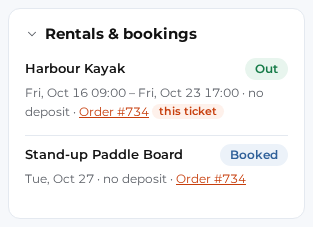
Only the customer’s WordPress account and their verified email addresses are matched, so a visitor who types someone else’s email address never sees that person’s orders. The cards need the “See purchases and licence status in the sidebar” permission, which operators have by default. Move the cards with their arrows (or drag a card’s title) and fold one by clicking its title; your order is kept for you.
The order or booking a ticket is about
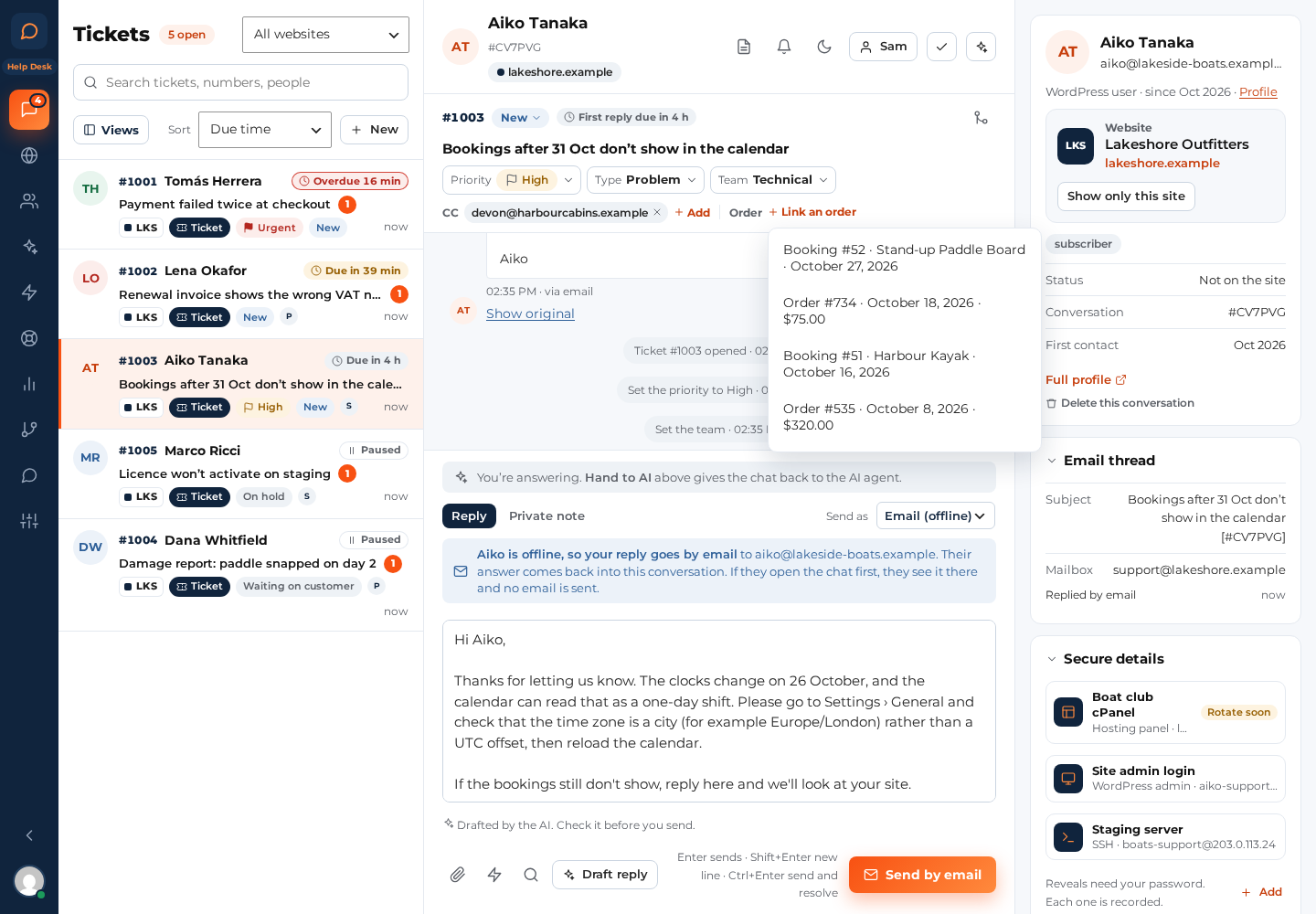
The ticket bar shows the order or booking the ticket is about. A customer picks it on the ticket form when they are signed in; your team can set or change it:
- Link an order (when none is set) or the caret next to the current one opens the list of this customer’s orders and bookings, newest first. Pick one, or None to remove it.
- Only the customer’s own orders and bookings are offered; another customer’s number is refused.
- Customers see it on their request in My support tickets as About: Order #48213 (or Booking #412).
- The ticket CSV export in Reports has a Linked order or booking column.
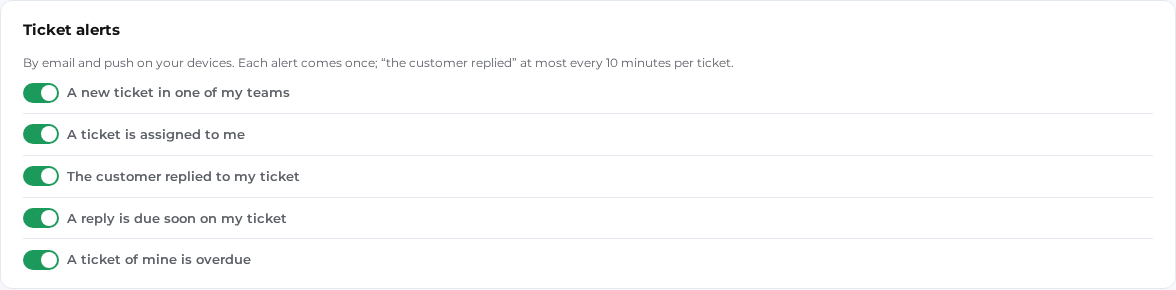
Ticket alerts
Help Desk sends your team alerts about tickets by email and Web Push. Each person turns their own on and off under their picture › Notifications and devices › Ticket alerts:
- A new ticket in one of my teams. A new ticket with no team, or in a team nobody is in yet, goes to everyone who works the inbox, so no ticket arrives unnoticed.
- A ticket is assigned to me
- The customer replied to my ticket (email at most once every 10 minutes per ticket)
- A reply is due soon on my ticket and A ticket of mine is overdue: the assignee, else the ticket’s team.
Each alert goes once. Assigning a ticket to yourself alerts nobody, imports never alert, and alerts never carry a Secure details value or a pasted password. Administrators set the defaults for people who haven’t chosen in Settings › Notifications › Ticket alerts.