
Sales Igniter Chat: the ticket form and My support tickets
Two pieces put Help Desk on your site: a form where customers send a request, and a page where they follow their requests. Both are blocks and shortcodes, and both load only on the pages that show them.
| Block | Shortcode | Shows |
|---|---|---|
| Support ticket form | [silc_ticket_form] | The request form |
| My support tickets | [silc_my_tickets] | The customer’s tickets, each thread, replies, “solved” and the rating |
Where to put them
- A Contact support page: add the “Support ticket form” block.
- A page of its own for “My support tickets”. The plugin remembers this page, so the links in ticket emails open it.
- WooCommerce: My Account gets a Support tickets tab by itself. It shows My support tickets for the signed-in customer.
- Easy Digital Downloads: add
[silc_my_tickets]to the account page (or a page linked from it).
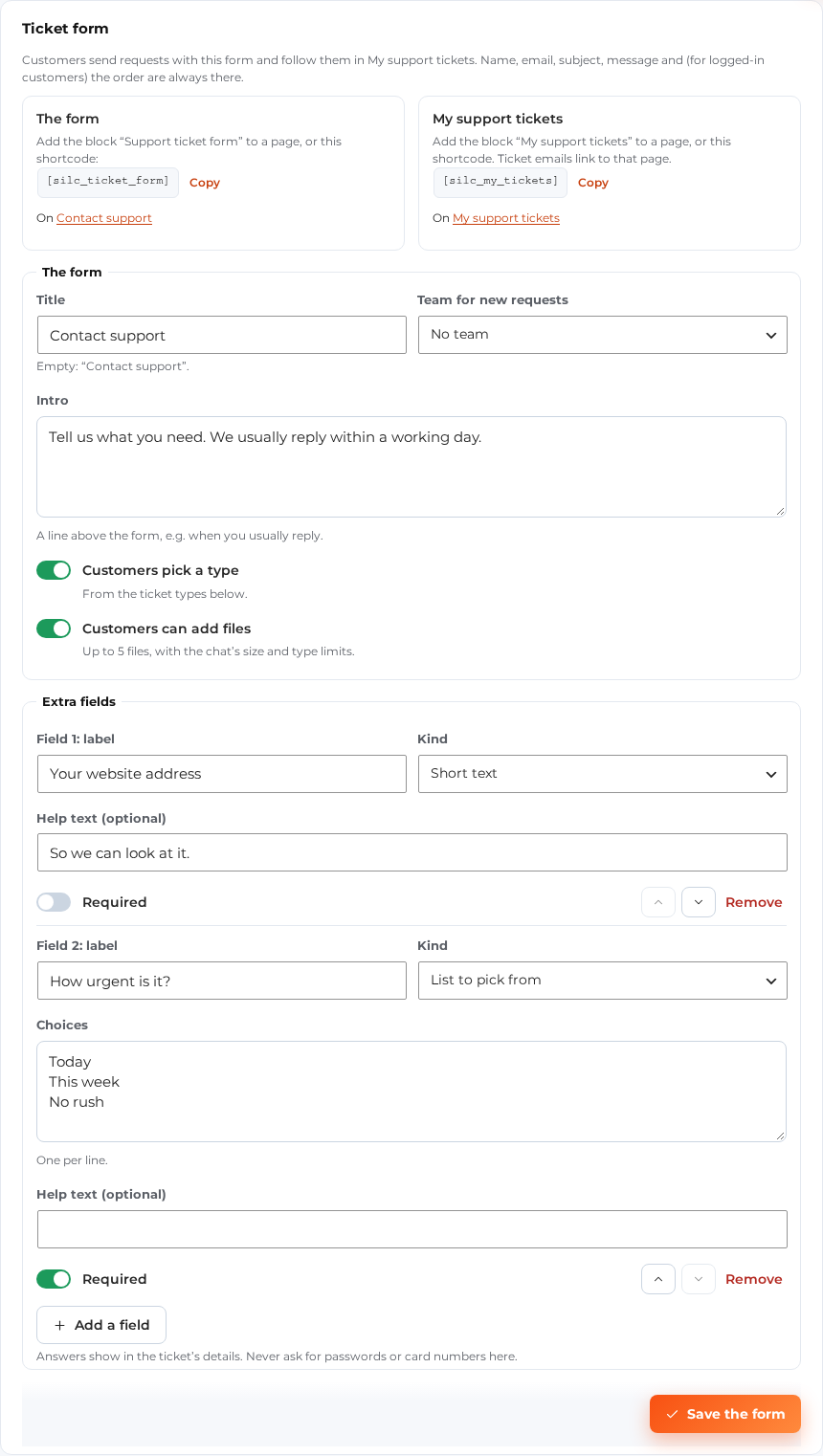
The form (Help Desk › Tickets › Ticket form)
Name, email, subject and message are always on the form. You choose the rest:
- Title and Intro shown above the form. An empty title shows “Contact support”.
- Team for new requests: new form tickets start in this team’s queue.
- Customers pick a type: let the customer pick a ticket type from your list.
- Customers can add files: up to 5 files, within the chat’s file size and type limits. Files are kept in a private folder and opened only through expiring links.
- Extra fields (Add a field): up to 8. Each is short text, long text, a list to pick from (up to 20 choices) or a checkbox, with a label, an optional help line and “required”. The answers show on the ticket. Never ask for passwords or card numbers here.
Click Save the form when you are done.
A signed-in customer also picks the order the request is about, from their last 20 WooCommerce or EDD orders. The ticket bar shows that order to your team.
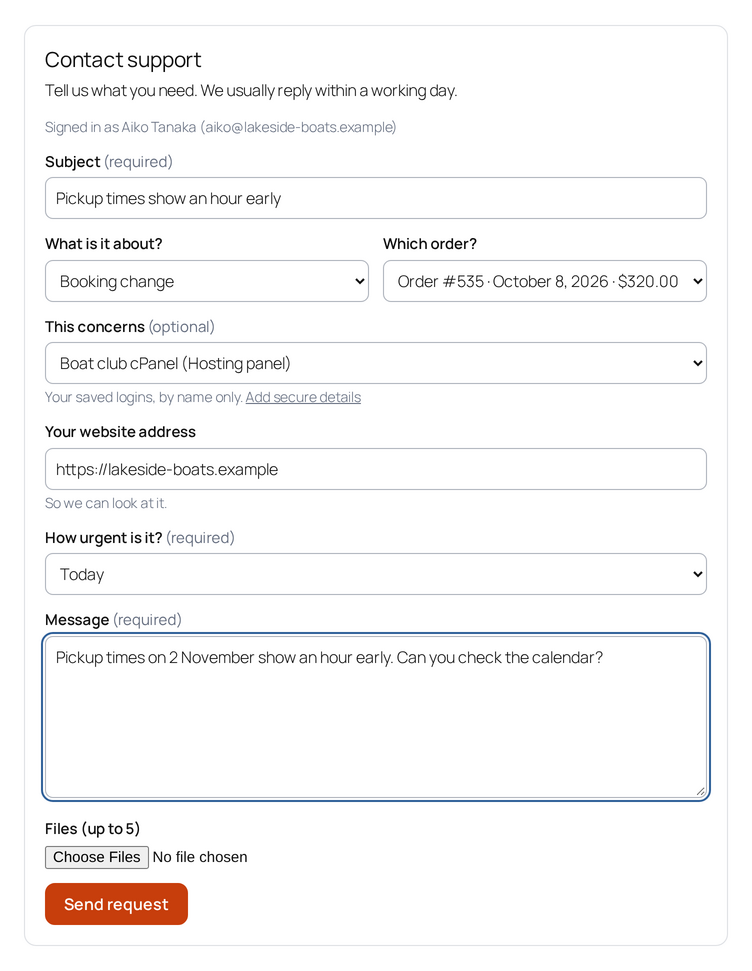
When the request is sent, the customer sees the ticket number and when you usually reply, and gets the “request received” email.
Spam
The form has a hidden field for bots and a timer: a form sent within 3 seconds of opening is refused. It also uses the same per-address limits as the chat (Settings › Privacy).
My support tickets
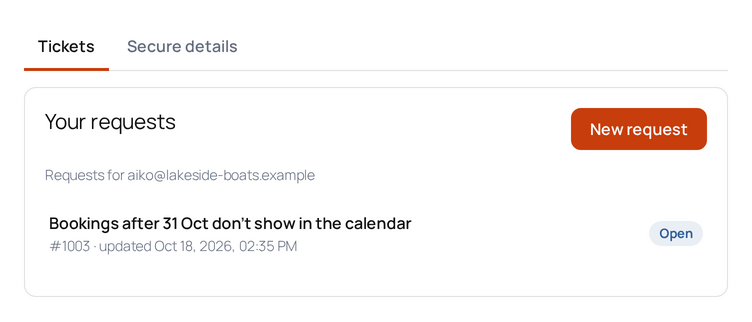
- Signed-in customers see every request linked to their account’s email address.
- Guests enter their email address and get a 6-digit code by email (valid for 10 minutes). After that, this browser sees their requests.
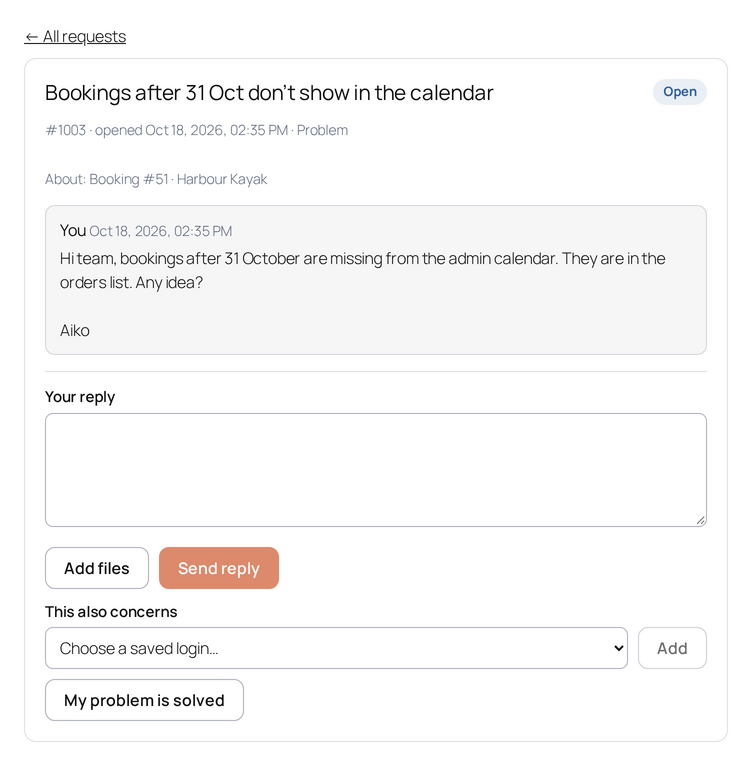
- Each request shows its number, status and the whole conversation (internal notes never show). The customer can reply with files, mark the request solved, and rate it.
- The status the customer sees is simpler than yours: Open, Waiting on you, Solved or Closed.
- A reply to a solved request opens it again. A reply to a closed request starts a follow-up that links back.
Secure details for customers
When Secure details are on, signed-in customers get two tabs: Tickets and Secure details. On the form and on each request they can say which saved login the request concerns, and the form warns them when a message looks like it holds a password. See Secure details.
The one-click rating
The “solved” email has a good and a bad button. A click opens a small page with the choice already picked, room for a comment and a button to send it. (Mail scanners open every link, so the click alone records nothing.) The customer can change the rating for 7 days. The rating shows on the ticket in your inbox.
On the Live Chat edition
The form also works without Help Desk. It then starts an email conversation in your inbox (no ticket number), and the extra answers, type and order are added as a note for your team. My support tickets lists tickets, so it shows requests only once Help Desk is on.