
Sales Igniter Chat: working with tickets
Tickets live in the same inbox as your chats. Click Tickets in the inbox’s views to see them.
The views
The views column lists:
- Tickets: every ticket that isn’t solved or closed.
- My tickets: the ones assigned to you.
- Unassigned: nobody has them yet.
- Due today and Overdue: by the SLA timers.
- Waiting on customer, On hold and Solved.
- One view per team.
On a wide screen (1680 px or more) the views sit in their own column. On a narrower one, the Views button opens them. Sort a view by due time (the default), priority or newest activity. A row shows the ticket number, the customer, the subject, the priority when it’s high or urgent, and when the next reply is due.
A ticket’s status
| Status | Means | The customer sees |
|---|---|---|
| New | Nobody on your team has replied yet | Open |
| Open | You’re working on it | Open |
| On hold | Waiting on something outside the conversation (a supplier, a part); SLA timers pause | Open |
| Waiting on customer | You asked the customer something; SLA timers pause | Waiting on you |
| Solved | Done; a reply from the customer opens it again | Solved |
| Closed | Finished; a reply starts a follow-up ticket that links back | Closed |
Replying moves a New ticket to Open. Pick another status from the status menu in the ticket bar, or send a macro that sets it (for example Waiting on customer after you asked a question). Ctrl+Enter sends and marks the ticket solved. When the customer answers a waiting or solved ticket, it is Open again.
Closing by itself (Help Desk › Tickets › Auto-close)
- Waiting on customer: a reminder email after 3 days, and the ticket is marked solved after 7 days.
- Solved: closed after 4 days.
Set any of these to 0 to switch it off.
The ticket bar
Under the conversation header, the ticket bar shows the number, the status and the SLA timer, and lets you change:
- Priority: Low, Normal, High or Urgent.
- Type: from your list (Help Desk › Tickets › Ticket types; the default list is Question, Problem, Booking change, Damage report and Billing).
- Team.
- CC: add people who should get every public reply by email, and remove them again.
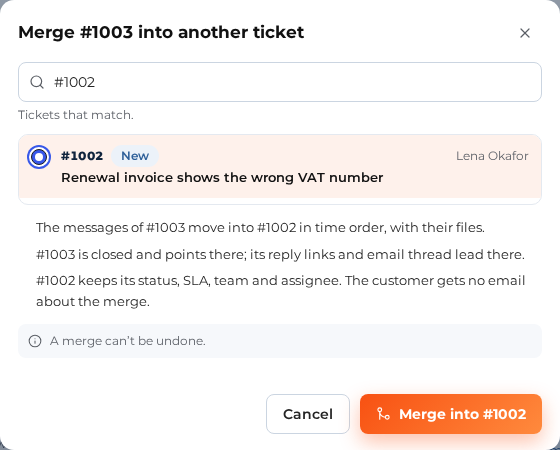
- Merge: move a duplicate into the ticket you keep. The duplicate’s messages join the kept ticket and the duplicate closes with a link. A merge can’t be undone.
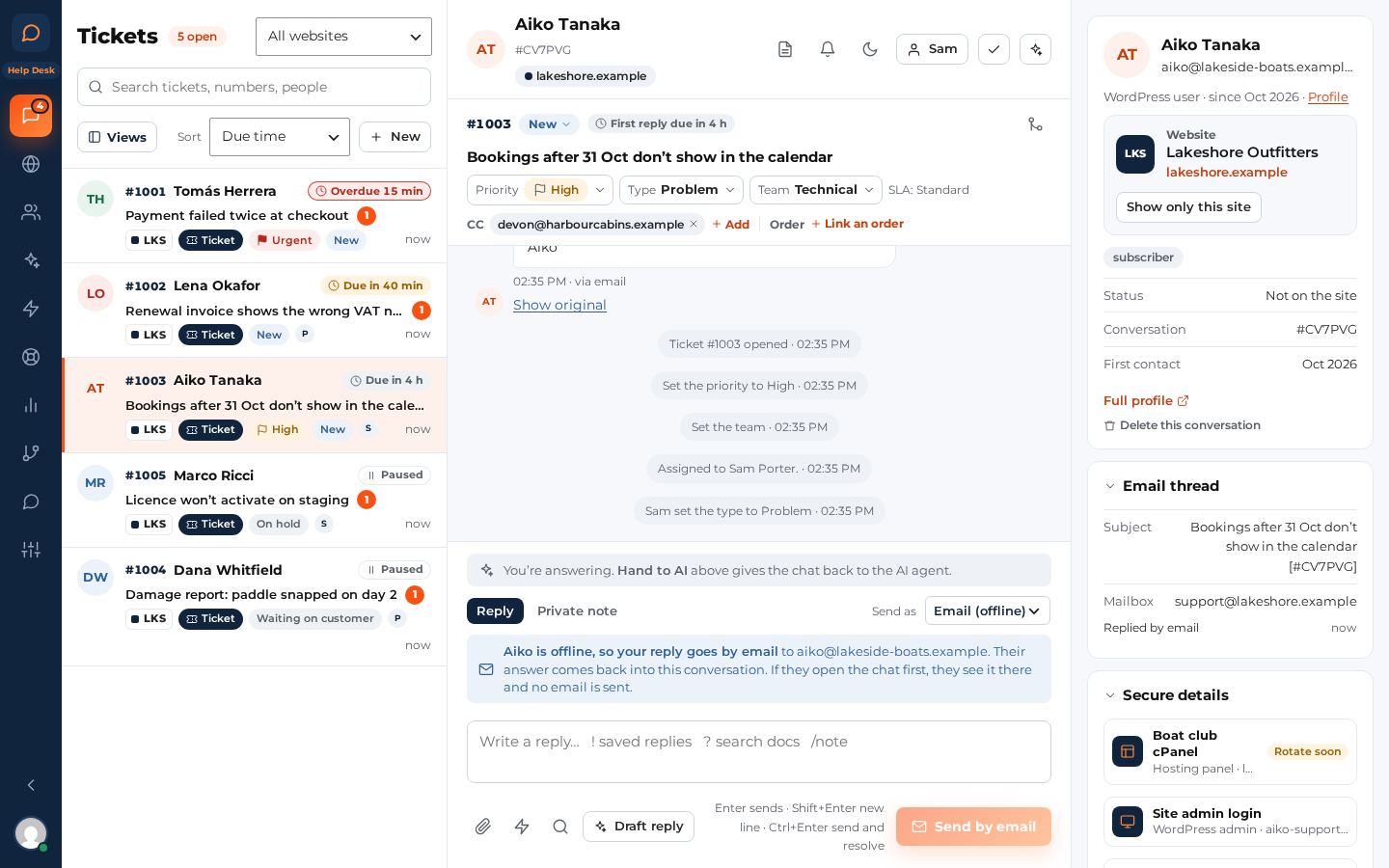
The bar also shows the order or booking the ticket is about (picked on the ticket form, or with Link an order), the Secure details it uses and, on long tickets, a short AI summary. See AI for tickets.
Making tickets yourself
- Make it a ticket: in a chat or an email conversation, turns it into a ticket.
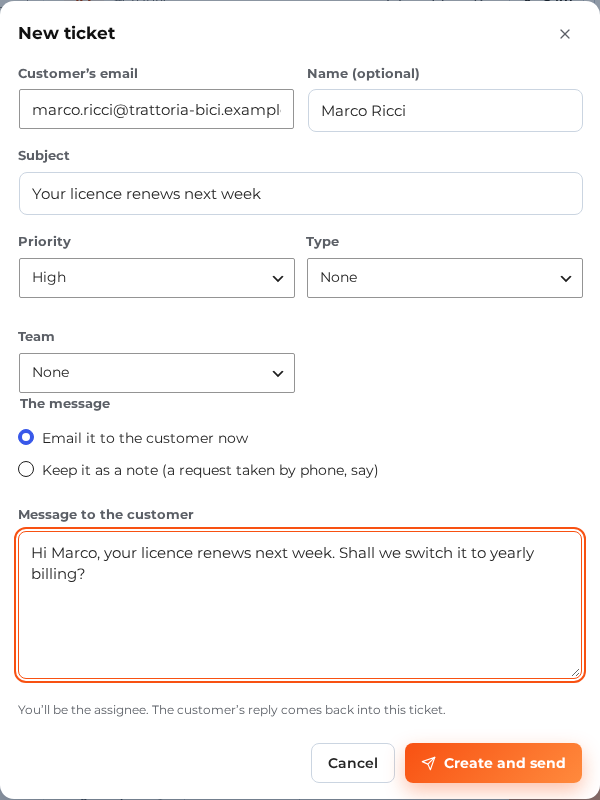
- New (above the ticket list): opens a ticket for a customer by email address. Choose to email your first message to them at once, or keep it as a note (for a request taken by phone).
Chats that become tickets by themselves
In Help Desk › Tickets › Chats and tickets (both on by default):
- “Leave a request” in the chat widget makes a ticket: when nobody is online, a visitor’s chat becomes a ticket and they see the request number.
- Chats nobody answered, and AI hand-overs out of hours, become tickets: a visitor asked for a person (or the AI handed over) when nobody was online or nobody joined in time.
Macros
A macro is a saved reply that can also set the status, priority, type, team and assignee when you send it (Help Desk › Macros). In the reply box, type ! and part of the macro’s name; the box shows what the macro will change before you send. Saved replies without actions keep working as before.
SLA timers
Each ticket gets timers from its SLA policy: first reply, next reply and resolution. They count your office hours (or 24/7, if the policy says so) and pause while the ticket is on hold or waiting on the customer. A timer turns amber when it’s close and red when it’s overdue. See Teams and SLA policies.