
Sales Igniter Chat: Help Desk reports
Reports in the menu shows how your tickets are going: how many came in, how fast your team answered and solved them, whether you kept your SLA promises and how customers rated the help. Every number can be split by channel, team, agent, type or website and downloaded as a CSV file.
Who sees Reports
People who may change Help Desk settings or see all chats (the “Change Help Desk settings” or “See all chats” permission; administrators have both). Operators who only answer chats don’t see it.
Reports stay readable when the Help Desk edition is off, for example after moving back to the Live Chat edition: your past tickets are still counted.
Dates and filters
- Dates: Last 7 days, Last 30 days (the default), Last 90 days, This month, Last month, Last 12 months, or Custom dates (up to two years). Days follow your site’s time zone.
- Filters: one website (shown when you have more than one, see One inbox for several websites), one team, one ticket type. “All websites”, “All teams” and “All types” count everything.
Every number is compared with the period of the same length just before, for example the 30 days before the last 30 days. Green means better, red means worse.
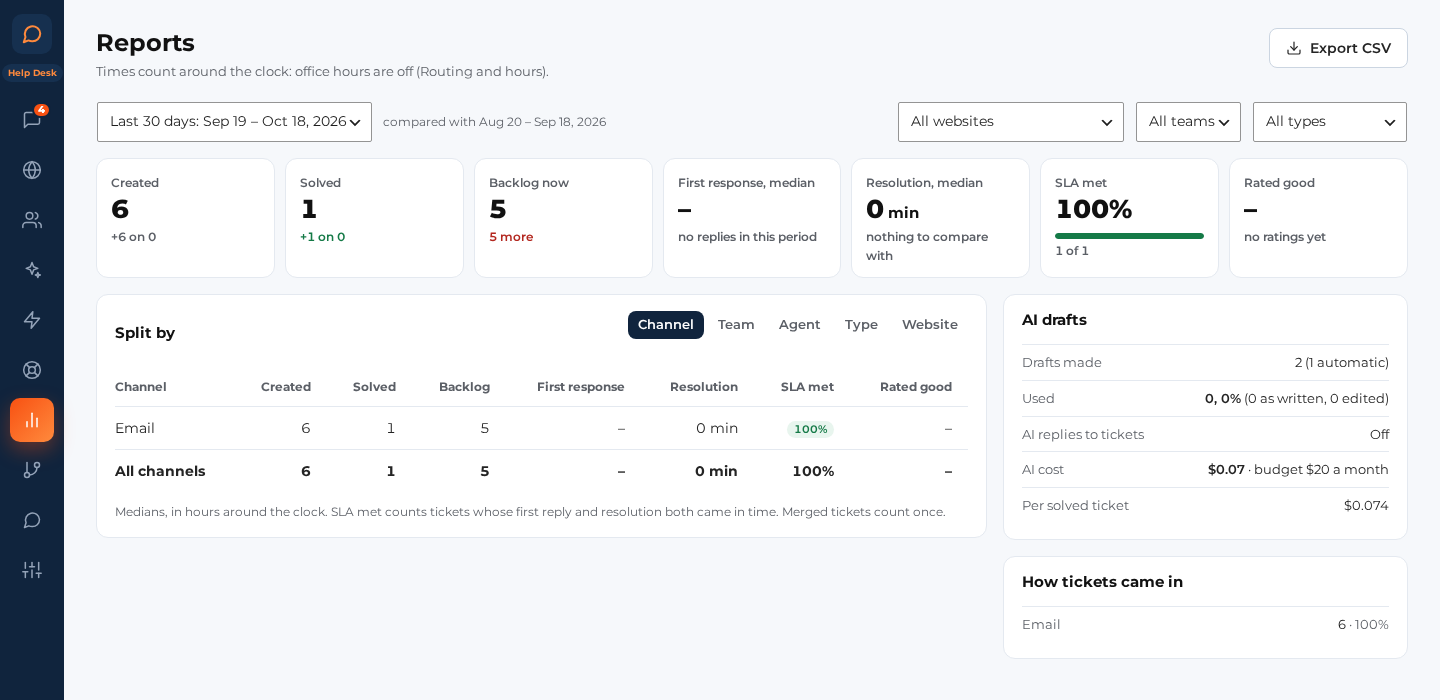
The numbers
| Tile | What it counts |
|---|---|
| Created | Tickets created in these dates |
| Solved | Tickets solved (or closed without being solved) in these dates |
| Backlog now | Tickets not solved or closed right now, compared with the start of the dates |
| First response, median | Time from a new ticket to your team’s first public reply, for tickets created in these dates |
| Resolution, median | Time from a new ticket to solved, for tickets solved in these dates (time waiting on the customer included) |
| SLA met | Tickets solved in these dates that had SLA targets and got both their first reply and their resolution in time |
| Rated good | The share of the ratings given in these dates that were good |
Times count in office hours. When office hours are on (Routing and hours), a ticket that arrives on Friday evening and gets its reply on Monday morning counts only the office time in between. The line under the table shows the hours used. With office hours off, times count around the clock.
Merged tickets count once: a duplicate merged into another ticket is left out; the ticket it went into counts.
Split by
The table under the numbers splits the same counts by:
- Channel: how each ticket started (Email, Ticket form, Chat made a ticket, Widget request, API, Imported, Follow-up).
- Team (“No team” for tickets without one).
- Agent: the person the ticket is assigned to (“Unassigned”).
- Type (“No type”).
- Website, when you have more than one.
Each row has Created, Solved, Backlog, First response, Resolution, SLA met and Rated good, sorted by the most tickets created. The last row holds the totals. SLA met is green at 95% or more, amber from 80% and red below.
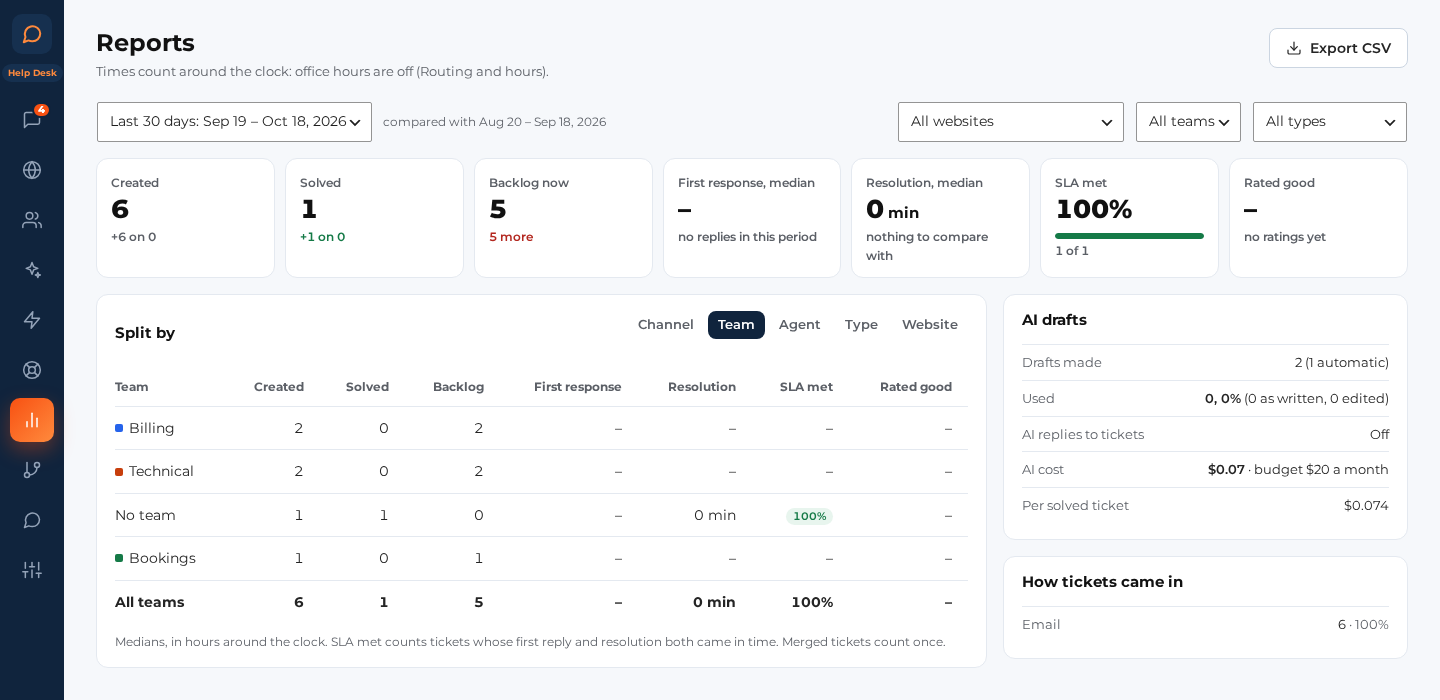
AI drafts and where tickets come from
- AI drafts: how many drafts the AI made (and how many of those were automatic), how many your team used, as written or edited, whether AI replies to tickets are on and how many were sent, what the AI cost in these dates against your monthly budget, and the AI cost per solved ticket. See AI for tickets.
- How tickets came in: the share of new tickets from each channel.
Export CSV
Export CSV downloads one of two files for the dates and filters on the screen:
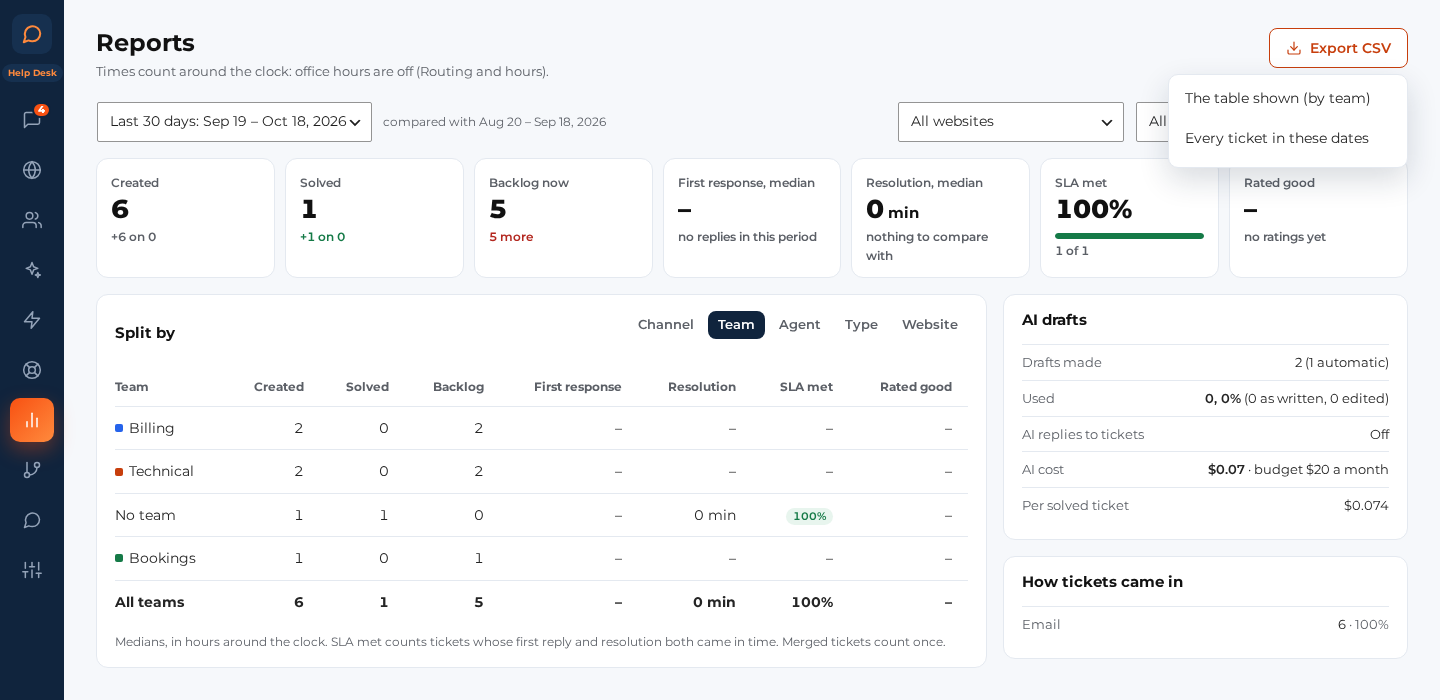
- The table shown: the split table as you see it, with the totals row (
ticket-report-<split>-<from>-<to>.csv). - Every ticket in these dates: one row per ticket (
tickets-<from>-<to>.csv) with Number, Subject, Created, First reply, Solved, Closed, Status, Priority, Type, Team, Agent, Website, Channel, Source, Rating, Linked order or booking and Source ref (the ticket’s number in the system it was imported from). Times are in your site’s time zone.
The files are UTF-8 and open in Excel, Numbers and Google Sheets. They never hold message text or Secure details. A cell that starts like a spreadsheet formula (=, +, -, @) gets a leading ' so it can’t run as one. Each export is recorded in the audit log (Settings › Audit log).