
Sales Igniter Chat: import tickets from SupportCandy
You can bring your SupportCandy tickets into Help Desk. The import copies them. It never changes or deletes anything in SupportCandy.
Before you start
- You need SupportCandy 3.x. Version 2.x isn’t supported. Update SupportCandy to 3.x first and let it finish its own database upgrade.
- SupportCandy can be active or deactivated. The import reads its tables directly. Don’t uninstall it yet: uninstalling can delete its tables.
- You need the “Change AI, routing, widget, mailbox and operator settings” permission. Administrators have it.
- Take a backup of your site first. That’s good practice before any import.
What comes over
- Every ticket with its full history, in order, with the original dates and times.
- Customer messages and team replies. A reply shows the team member who wrote it. We match SupportCandy agents to your team by email address.
- Private notes. They stay private: customers never see them.
- SupportCandy’s history lines (status changed, assignee changed and so on). They show as small events in the ticket.
- Customers. We match each customer to an existing contact or WordPress user by email address. Customers we don’t know yet become new contacts.
- Attached files, including images pasted into a message. They go into Help Desk’s private file store, not into your media library.
- Ticket numbers. A ticket keeps its number when that number is free here. If Help Desk already has a ticket with that number, the imported ticket gets the next free number. Its old number stays in the ticket’s details: search the inbox for
supportcandy:42to find the ticket that was number 42 in SupportCandy. New tickets always get numbers above the highest imported one. - Status, priority and category. You choose how they map (see “The mapping” below).
- Additional recipients (CC). They stay on the ticket and get team replies from now on.
- Tags and custom fields. They go into the ticket’s details. Fields only your team could see stay team-only.
- Archived tickets. You can leave them out in the mapping.
- Old ticket links. Help Desk keeps what it needs (never the link code itself) so the links SupportCandy sent can lead to the right ticket, as long as the link’s code is right. Switch this on after the import (see “Old SupportCandy links” below).
What doesn’t come over
- Tickets in SupportCandy’s trash, and deleted replies.
- Fields that look like they hold logins or passwords (for example “Login details”). We never copy those into plain ticket details. If you still need some of them, add them to Secure details by hand.
- Customer fields (stored on the customer, not the ticket). You can switch each one on in the mapping, unless it looks like a login field.
- Files larger than 10 MB, and files of risky types (programs, scripts, web pages). The log lists each one.
- SupportCandy’s settings: email templates, agent roles, working hours, SLA rules and automations. Set those up again in Help Desk.
- The edit history of replies.
Nobody gets an email
The import sends nothing. No email goes to customers or CC’d people, and your team gets no notifications. That’s true during the import and afterwards.
- Imported tickets that wait on the customer don’t get the reminder or the automatic “solved”. Nobody gets an email about an old ticket. Solve them by hand when they’re done.
- Imported tickets have no SLA timers. The clock starts with the customer’s next message.
- Solved tickets older than your auto-close setting come in as closed.
How to run it
- Go to Help Desk › Tools › Import tickets.
- Check that SupportCandy shows as found, with its version.
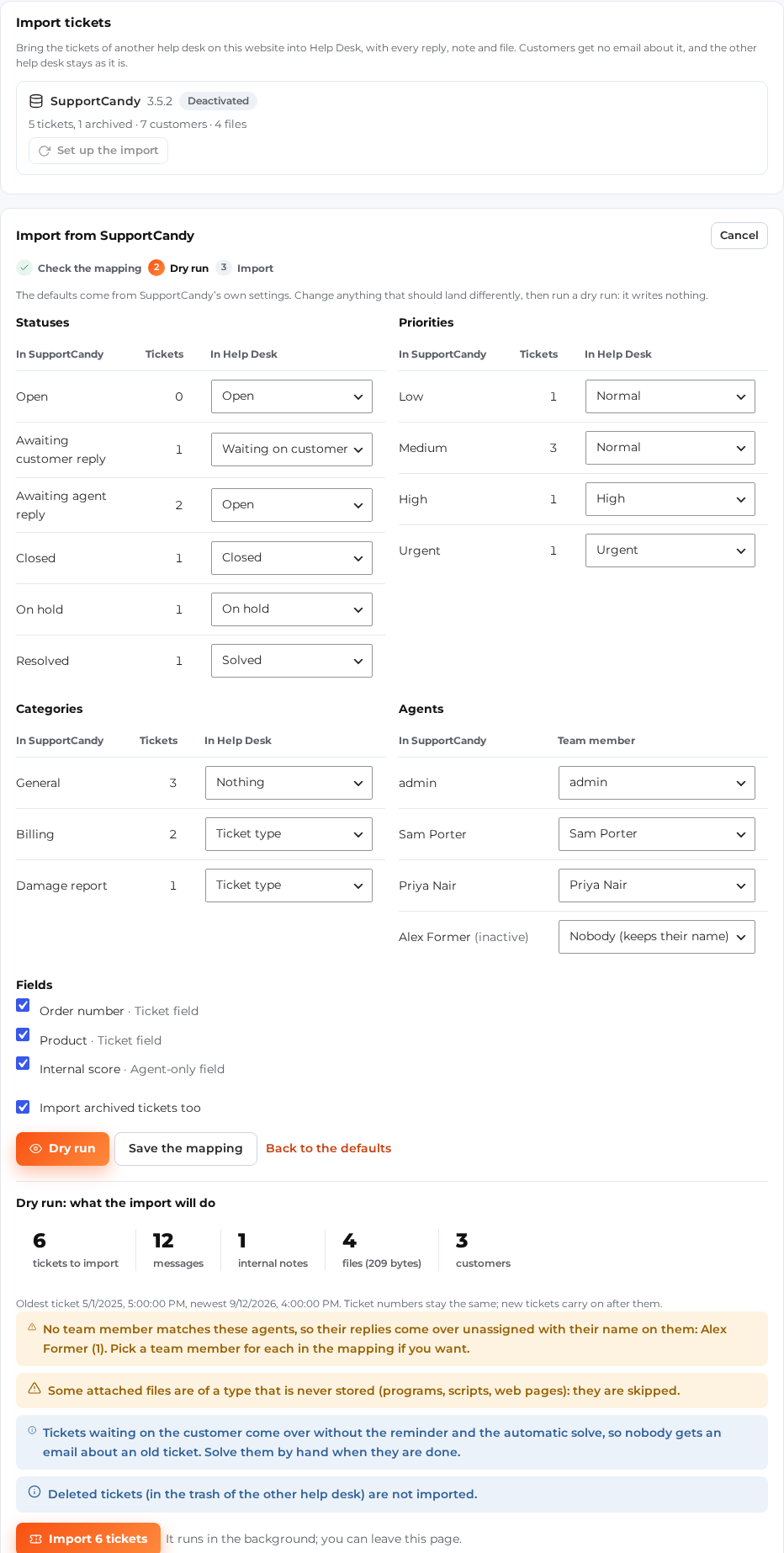
- Click Set up the import (after a first run the button says Import new tickets). Look at the mapping (Statuses, Priorities, Categories, Agents and Fields) and change what you need. Save the mapping keeps it; Back to the defaults resets it.
- Click Dry run. Read the counts and the list of things to check.
- Click Import N tickets (N is the number the dry run found). The import runs in the background, in batches. You can leave the page. Come back to see the progress.
- When it’s done, click Download the log and read it.
On the command line (WP-CLI)
wp silc import sources
wp silc import mapping --source=supportcandy
wp silc import mapping --source=supportcandy priorities.Low=normal statuses.3=waiting
wp silc import dry-run --source=supportcandy
wp silc import run --source=supportcandy --batch=50
wp silc import status
wp silc import resume --run=3
wp silc import log --run=3 > import-3.log
run and resume wait until the import is done. Add --background to leave it to the background jobs.
mapping without changes shows the mapping. Each change is kind.id=value or kind.name=value: statuses (open, on_hold, waiting, solved, closed), priorities (low, normal, high, urgent), categories (type, tag, none), agents (a team member’s user id, or 0 for nobody), fields (yes or no) and archived=yes|no. If one change is wrong, nothing is saved. --reset goes back to the guesses. A run keeps the mapping it started with.
The mapping
We guess a mapping from SupportCandy’s own settings and names. Change any of it before you start.
- Statuses become Open, On hold, Waiting on customer, Solved or Closed. SupportCandy’s closed statuses become Closed. The status it sets after a team reply becomes Waiting on customer. An open ticket nobody answered yet shows as New.
- Priorities become Low, Normal, High or Urgent. “Medium” becomes Normal. If every SupportCandy ticket is Low only because Low was its default, map Low to Normal.
- Categories become a ticket type, a tag, or nothing. “General” becomes nothing. New types are added to your ticket types (up to 30). Past that, they become tags.
- Agents become a team member, or nobody. An agent who left keeps their name on their replies. Those replies have no team member.
- Custom fields are copied or not, one by one.
The dry run
The dry run counts what the import would do. It writes nothing. It shows:
- tickets per status, priority, category and age, and what each becomes here;
- how many tickets came over already;
- messages, notes, history lines and files;
- agents and the team member each one maps to;
- things to check first: agents with no match, customers without an email address, missing or blocked files, numbers that are taken, login-like fields.
Running it again
You can run the import again at any time. Tickets that came over already are skipped. So a second run only brings over tickets added since the first run.
If an import stops halfway (a server timeout, a restart), it picks up where it stopped. It restarts by itself within about 10 minutes. You can also click Resume (or run wp silc import resume).
Old SupportCandy links
Your customers have old emails from SupportCandy, and your pages may link to SupportCandy’s support page. After the import, switch on Old SupportCandy links open the imported ticket. The switch is a card on the Import tickets screen, called “Old SupportCandy links”. It can only be switched on after an import has finished. Then:
- A ticket link from an old email (
?wpsc-section=ticket-list&ticket-id=42&auth-code=…, and SupportCandy’s other spellings) opens My support tickets with that ticket open. The link’s code lets that browser see that one ticket, as it did in SupportCandy. A customer who is signed in goes straight to their ticket. Your team goes to the ticket in the inbox. - A wrong code, no code, or a ticket that didn’t come over opens My support tickets itself. The customer signs in or asks for an email code there.
- A file link (
?wpsc_attachment=…) opens the imported copy of the file, on the same rules. - Section links (
?wpsc-section=ticket-list,new-ticket,my-profile) open My support tickets, or the ticket form fornew-ticket. - Your team’s old admin links (
admin.php?page=wpsc-tickets&id=42) open the ticket in the inbox once SupportCandy is deactivated. While SupportCandy is active, its own screen answers them.
If SupportCandy asked for a sign-in on ticket links (“ticket URL authentication”), a code alone still isn’t enough. The links never lead to another website, and after 30 wrong codes in an hour from one address, codes are ignored for a while. You need a page with My support tickets ([silc_my_tickets]) for this to work. It works whether SupportCandy is still active or not.
What to check afterwards
- Open a few imported tickets. Check the messages, notes, files and dates.
- Check the tickets waiting on the customer, and solve the finished ones.
- Read the log. Look for files that weren’t copied and agents without a match.
- Search for a customer you know and check their tickets are on their contact.
- Point your support page to Help Desk’s ticket page, and switch on “Old SupportCandy links open the imported ticket”.
- When you’re happy, you can deactivate SupportCandy. Keep its tables (and a backup) for a while, in case you want to check something.