
Sales Igniter Chat: Secure details
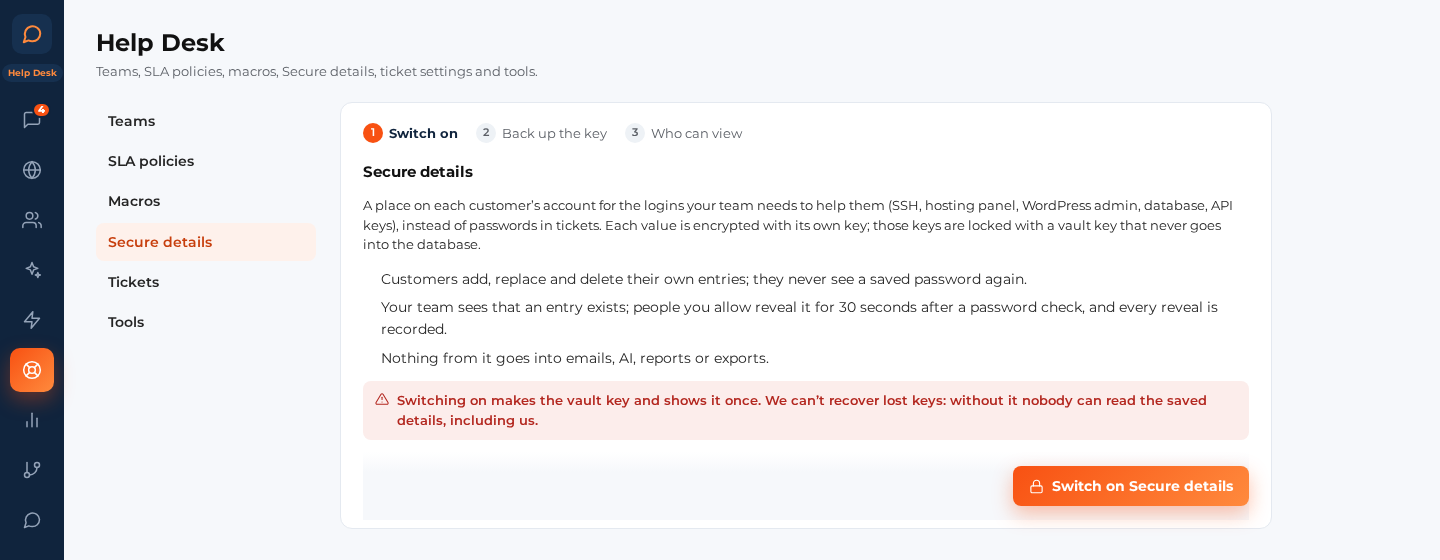
Secure details keep your customers’ logins (hosting panels, SSH, WordPress admin, databases, API keys) encrypted on your site, so they never sit in emails or chat messages. Customers add, replace and delete their own entries and never see a saved password again. Your team sees that an entry exists; people you allow reveal it for 30 seconds after a password check, and every reveal is recorded. Nothing from Secure details goes into emails, the AI, reports or exports.
Secure details come with the Help Desk edition and are off until an administrator switches them on.
Switch on (Help Desk › Secure details)
Three steps: Switch on, Back up the key, Who can view.
- Switch on Secure details. This makes the vault key and shows it once.
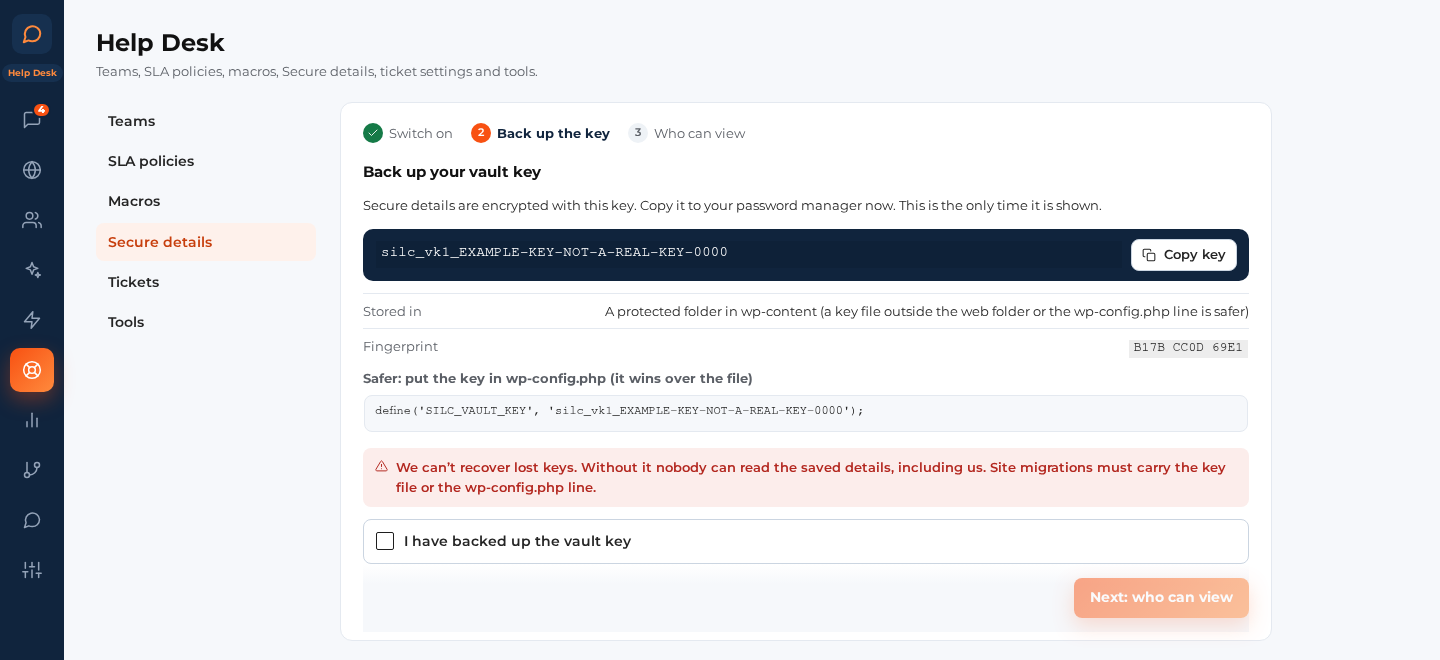
- Back up the key. Copy it to your password manager, then tick I have backed up the vault key. Until then nothing can be saved.
Back up your vault key. We can’t recover lost keys: without it nobody can read the saved details, including us.
- Who can view: pick the people who may view and edit (see below).
Where the key lives
The key is never kept in the database. In this order:
SILC_VAULT_KEYin wp-config.php, when you add it. This is the safest place, and it always wins. The screen offers the line to paste. Keep a copy of the line in your password manager.- A key file in a folder above your web root, when the server allows it.
- Else a key file in
wp-content/silc-vault/, with files that stop the web server from serving it. The screen runs a web check: when the folder can be read from the web (nginx ignores those files), it shows the nginx line to add, or you move the key to wp-config.php.
The screen shows where the key is, its fingerprint (a short name for the key that can’t be turned back into it) and the web check.
Moving the site
A site move or a staging copy must carry the key file or the wp-config.php line. When the key is missing, saved details can’t be opened and nothing new can be saved until an administrator pastes the key under Restore the key. The key must match the fingerprint shown.
Who can view and edit
Each person on your team gets none, one or both:
- View (reveal, copy)
- Edit (add, replace, delete)
Without them, people see only the name and type of each entry. Giving or taking either one emails every administrator.
Using an entry (your team)
- The customer’s card in the inbox sidebar lists their entries by name and type.
- Reveal asks for your WordPress password again (or a code by email) once every 5 minutes. After 5 wrong tries it waits 15 minutes. A code works for 10 minutes.
- A revealed value hides again after 30 seconds. Copy copies it without showing it.
- Each entry has a history: who added, replaced, revealed or copied it, and from which ticket.
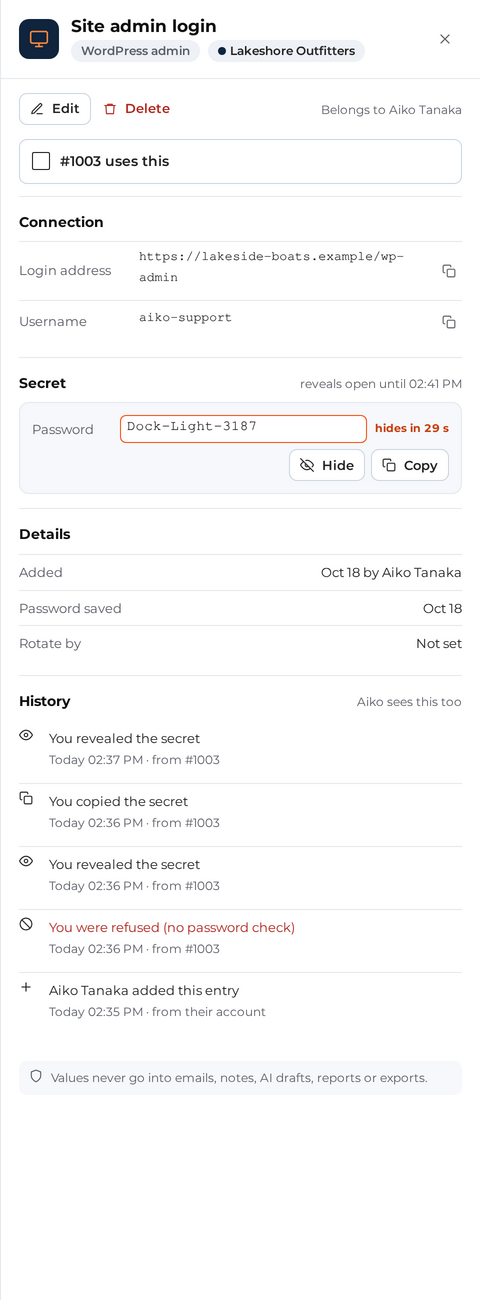
- Mark the entries a ticket uses; the ticket bar shows them.
- Limits: 30 reveals and copies per person an hour. When one person reveals more than 10 in an hour, every administrator gets an email.
For your customers
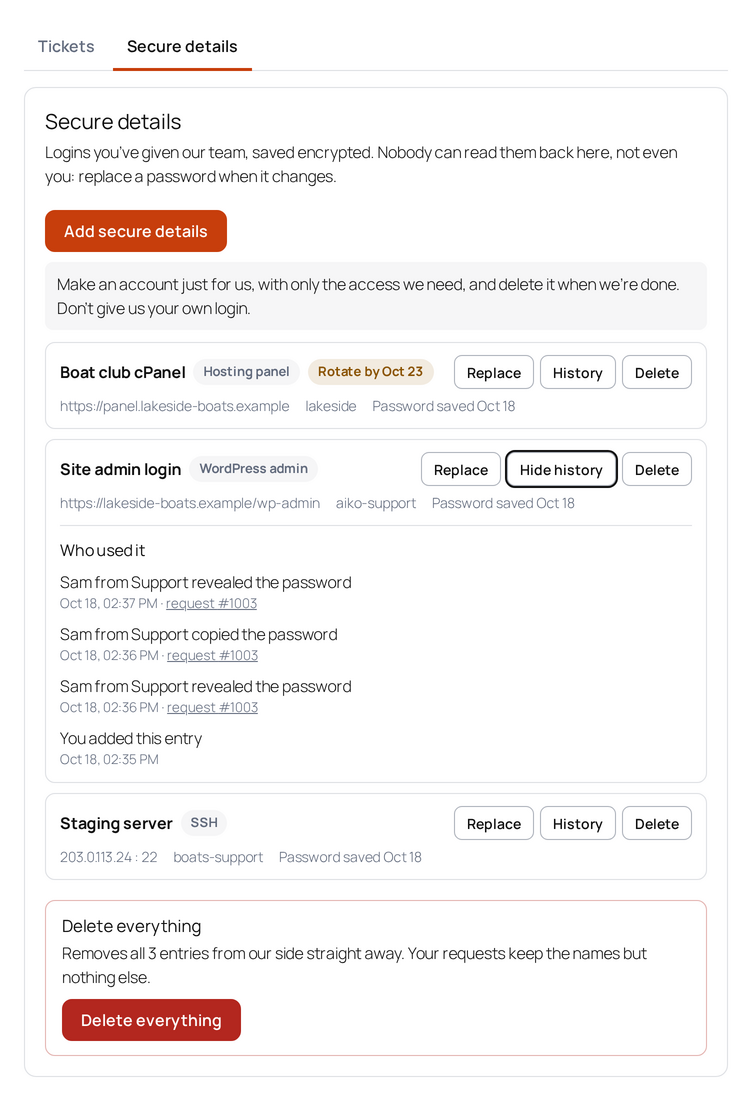
On My support tickets, a signed-in customer gets a Secure details tab next to Tickets:
- Add an entry: a name, the type, the host, username, password or private key, notes, and an optional “Remind me to change it” date.
- Replace a password when it changes, see the entry’s history (for example “Sam from Support revealed the password”, with a link to the request), Delete one entry or Delete everything. These ask for their account password first.
- On the ticket form and on each request: This concerns names the saved login the request is about.
- Up to 20 changes an hour.
Guests see a short note asking them to create an account.
Paste warnings
When someone types or pastes something that looks like a password or a key:
- The ticket form and replies on My support tickets: a warning offers to move it into Secure details, remove it from the message, or send anyway.
- The chat widget: a warning offers to remove it, a link to Secure details (signed-in customers), or send anyway. The typing preview your team sees masks it.
- Your reply box: the same warning, with a move into the customer’s Secure details.
- Knowledge Answers: a secret is never saved in a question or an answer.
Flagged emails
An email that holds a login is flagged in the inbox. People who may edit can Move to Secure details and remove from the message in one step.
Change-by reminders
When an entry has a “Remind me to change it” date, the customer (when we have their email address) and everyone who may edit get an email 7 days before. The customer’s email links to their Secure details tab.
When the licence changes
- Expired: nothing changes. Secure details keep working.
- Revoked or moved to the Live Chat edition: entries stay. Customers can still delete theirs, people who may view still can, and nothing new is added.
Commands
| Command | Does |
|---|---|
wp silc vault status | Whether Secure details are on, where the key lives, its fingerprint, the web check and the number of entries |
wp silc vault self-test | Runs the web check again: writes a test file into the key folder and tries to read it over the web |
wp silc vault rotate-key | Makes a new key and re-wraps every entry with it; the old key stays until all are done. Back up the new key |
With SILC_VAULT_KEY in wp-config.php, put the new key there and the old one in SILC_VAULT_KEY_PREVIOUS before rotate-key. Remove SILC_VAULT_KEY_PREVIOUS once the command says “done”.