
Sales Igniter Chat: Help Desk, getting started
Help Desk adds tickets to the inbox you already use for chats and email. A ticket is a conversation with a number, a status, a priority, a team and timers that show when the next reply is due. Your customers send requests from a form on your site, by email or from the chat, and follow them under My support tickets.
The two editions
- Live Chat is everything you have today: chat, the AI chatbot, email conversations, saved replies, contacts.
- Live Chat + Help Desk adds tickets, teams, SLA policies, macros, the ticket form and My support tickets, ticket emails, Secure details, AI drafts for tickets, reports and the SupportCandy import.
One plugin does both. The edition comes from your licence key: when your key is for Live Chat + Help Desk (or a package that includes it, such as Ultimate), Help Desk switches on by itself.
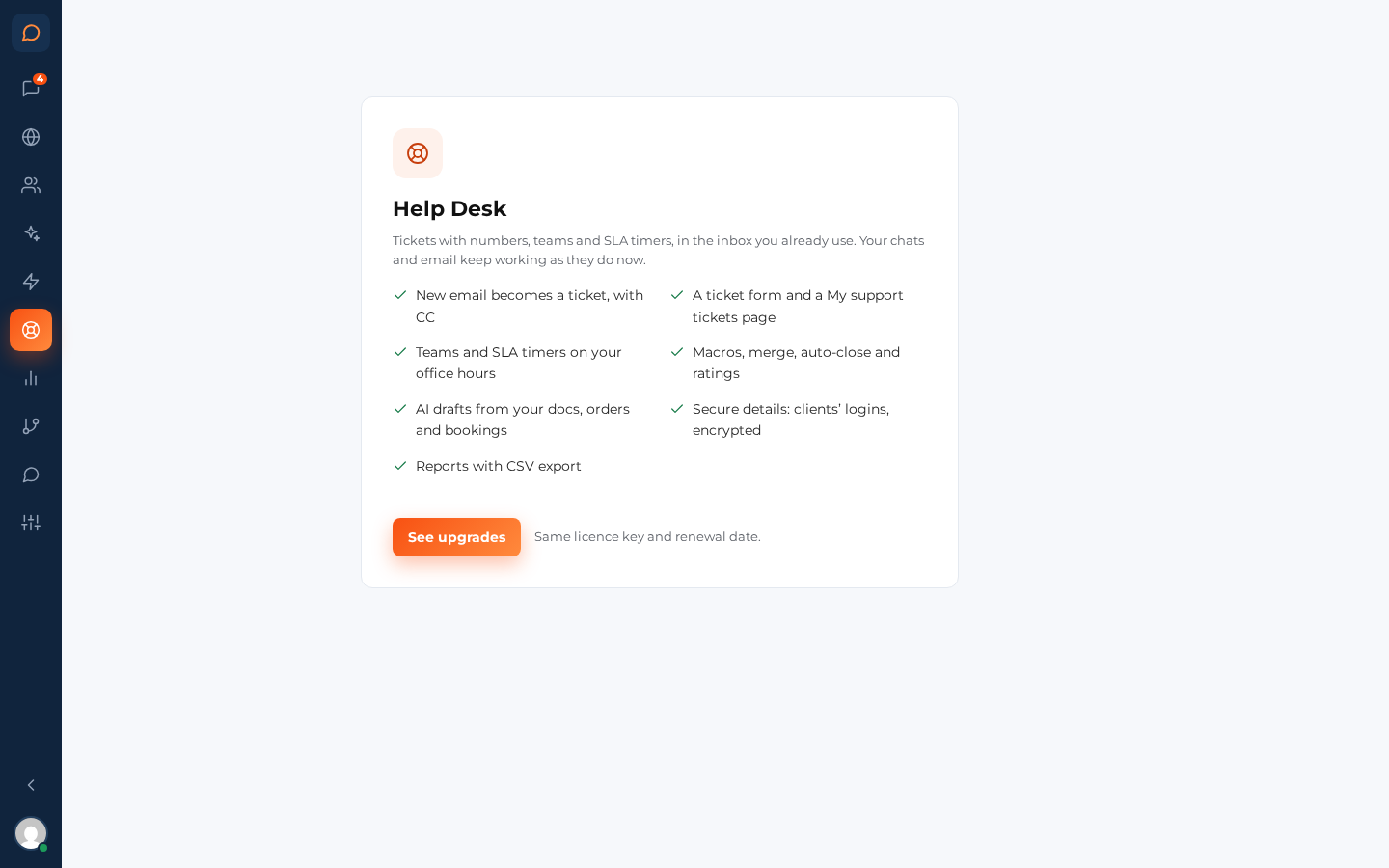
On the Live Chat edition, Help Desk in the menu shows what the upgrade adds and a See upgrades button. The upgrade keeps your licence key and your renewal date; you pay the difference.
An expired licence never switches Help Desk off. You keep your tickets, settings and Secure details; you only stop getting updates until you renew.
What happens when Help Desk switches on
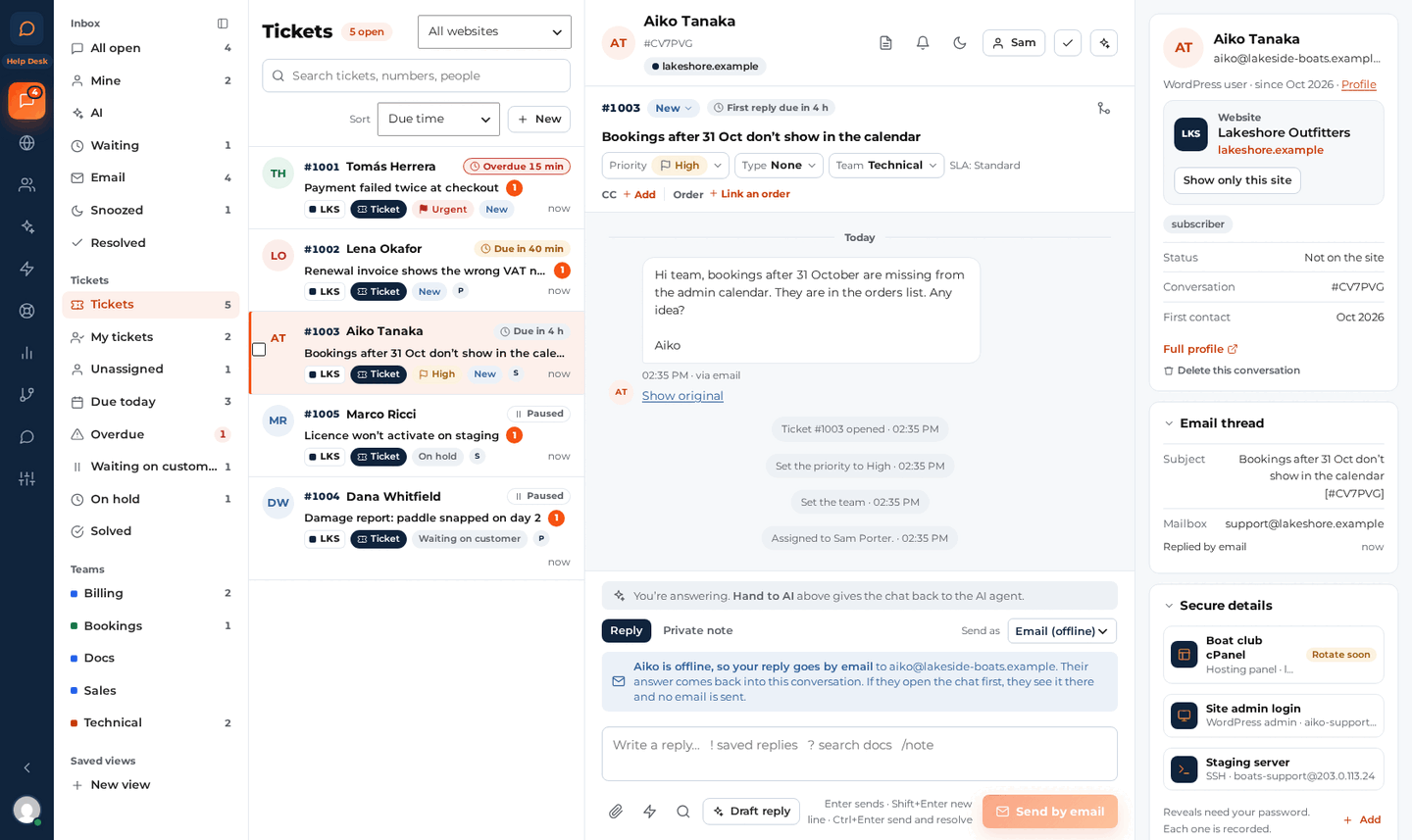
- The inbox gets a views column (Tickets, My tickets, Unassigned, Due today, Overdue, Waiting on customer, On hold, Solved and one view per team). See Working with tickets.
- Your routing groups are copied into teams once. Groups still route chats; teams own tickets.
- New mailboxes turn new emails into tickets. Existing mailboxes keep working as before until you switch that on (Settings › Email › Mailboxes).
- Nothing changes for your chat visitors until you add the ticket form or My support tickets to a page, or switch on “Leave a request”.
Set it up in five steps
- Teams (Help Desk › Teams): who answers what. Give each team its members, a colour, a default mailbox and how new tickets are handed out (left in the team’s queue, or round-robin among members who are online).
- SLA policies (Help Desk › SLA policies): how fast you promise to answer. The standard targets apply to every ticket; add a policy for a team, a type or a priority when it needs other targets. See Teams and SLA policies.
- Ticket settings (Help Desk › Tickets): your ticket types, when tickets close by themselves, the emails your customers get, and which chats become tickets.
- Pages for your customers: add the “Support ticket form” block to a Contact support page and the “My support tickets” block to a page of its own. WooCommerce sites also get a “Support tickets” tab in My Account. See The ticket form and My support tickets.
- Email: point your support address at a mailbox (Settings › Email › Mailboxes) so emails become tickets. See Tickets by email.
Already on SupportCandy? Import your tickets first (Help Desk › Tools › Import tickets). See Import tickets from SupportCandy.
Where things are
| Help Desk › | What it holds |
|---|---|
| Teams | Teams, members, default mailbox, SLA policy, assignment |
| SLA policies | Standard targets and the policies that override them |
| Macros | Saved replies that also set the status, priority, type, team or assignee |
| Secure details | Customers’ logins, encrypted: switch on, key backup, who may view |
| Tickets | Types, auto-close, emails to customers, chats and tickets, AI, the ticket form |
| Tools | Import tickets |
Reports has its own place in the menu (see Reports), next to Help Desk.