
Sales Igniter Chat: live visitors and proactive messages
See who is on your site right now and start the conversation yourself: Live visitors shows the people browsing, on a list and a world map, and proactive messages open the chat by themselves on the pages and moments you choose, such as the pricing page after 30 seconds or a cart above a value.
Live visitors
Open Live chat › Live visitors.
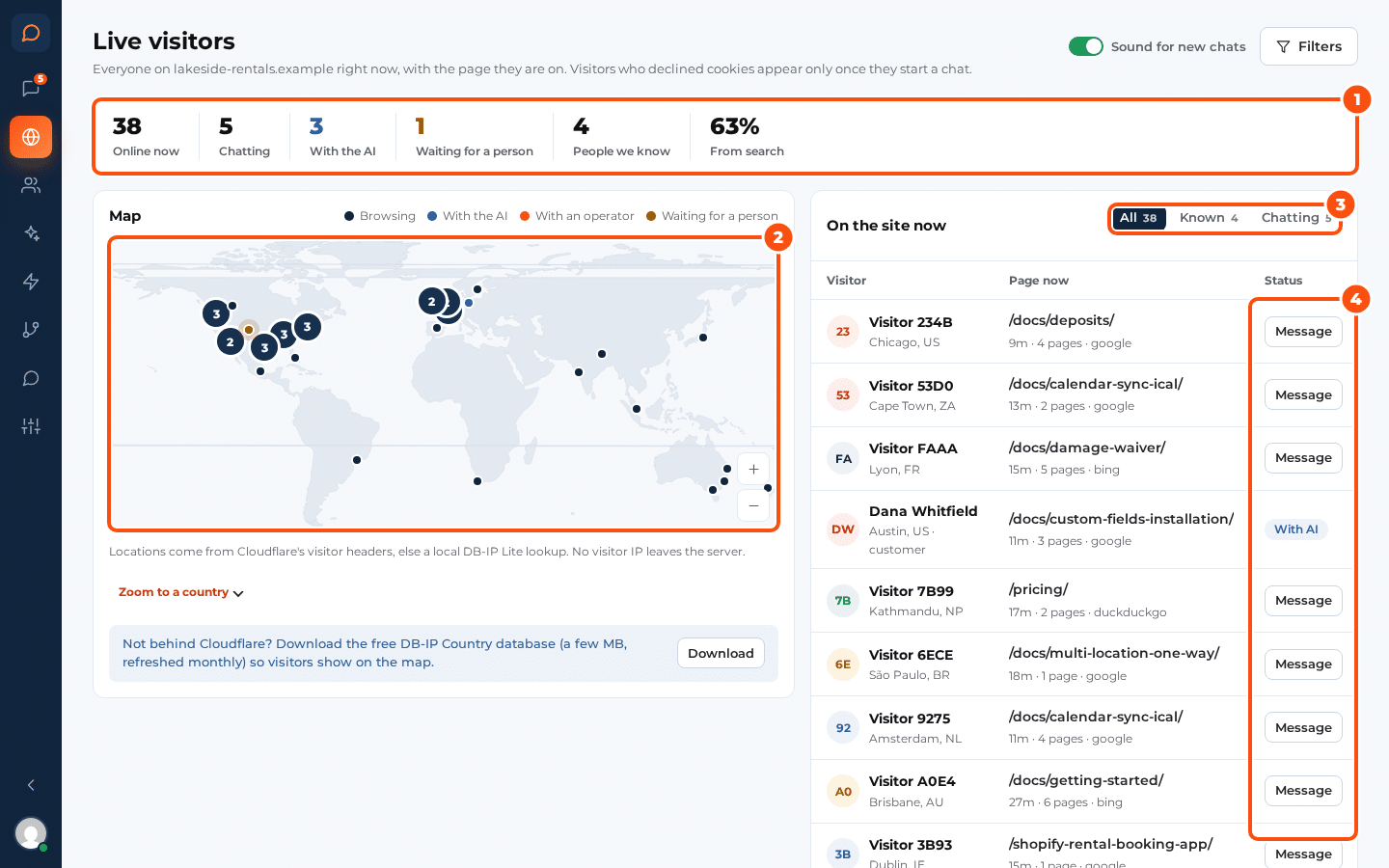
- The counts: online now (with how many of them are away), chatting, with the AI, waiting for a person, people you know and visitors from search.
- The map groups visitors into clusters and zooms with the wheel or by dragging; Zoom to a country jumps to one. It is drawn by the plugin itself: no map service, no key, nothing leaves your browser.
- The list shows each visitor’s location, current page and status. A customer who is logged in shows by name before they chat, and is linked to their account and to their earlier chats; your team members are never listed. The filters narrow it by country, device and where they came from (search, other sites and links), and by website when the inbox serves several websites. Click a visitor to see their details (below).
- Away (a grey dot) means the visitor still has your site open, in a tab they are not looking at. A background tab checks in every 2 minutes, and the visitor shows as browsing again as soon as they come back to it. Someone who closes your site leaves the list within about 15 seconds; moving from page to page never takes anyone off it. A visitor whose phone locked or whose connection dropped stays as Away for a few minutes. Settings › Realtime › Live visitors sets how long a visitor stays listed after their last check-in (5 minutes by default, 3 to 30).
- Message starts a chat with a visitor. It shows above their chat button as a preview, from you.
- Sound for new chats plays a sound while the screen is open.
Visitors show here only with their consent (see Privacy, consent and GDPR). A visitor who declined cookies appears once they start a chat. With tracking switched off, only people chatting appear.
A visitor’s details
Click a visitor in the list, or Details on a dot of the map, to open their details at the side of the screen. It works for every visitor, also for people who have not registered, given a name or started a chat yet. It updates by itself while they browse. Press Esc or click outside it to close it.
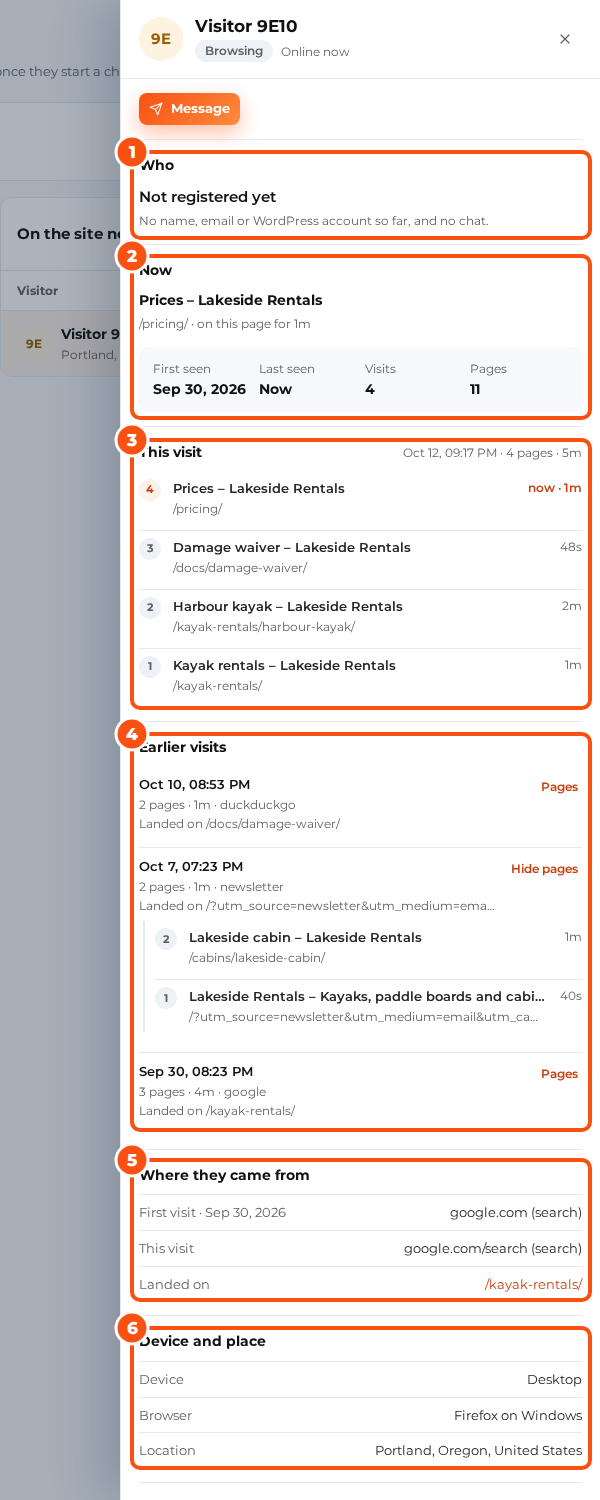
- Who shows the name, email (and whether it is verified), company and WordPress account of someone you know, and Customer if they have bought. A visitor you know nothing about yet shows as Not registered yet; everything below still shows for them.
- Now is the page they are on and how long they have been on it, with when you first and last saw them and their number of visits and pages. The top of the panel says Browsing, Away (tab in background) or when they left the site.
- This visit lists the pages they viewed, newest first, with the time spent on each. Show earlier pages loads more.
- Earlier visits lists their other visits with the date, pages, time, where they came from and the page they landed on. Pages opens the pages of that visit; Show older visits loads more.
- Where they came from shows the source of their first visit and of this one, such as Google search, another site, a newsletter link with its campaign, or typed in, and the page they landed on.
- Device and place shows phone, tablet or desktop, the browser and system, their country and city when known, and their local time.
- Privacy shows whether they allowed visitor tracking and the chat terms, and Conversations lists their past chats and emails, each opening in the inbox.
- At the top, Message starts a chat with someone browsing, Open chat goes to their current chat, and Full profile opens the person in Contacts once you know them.
Pages and visits are kept only as long as you choose under Settings › Privacy; older ones are no longer shown. No IP address is stored or shown. Operators see a visitor’s past conversations only when they can see those conversations in the inbox.
Where visitors are
Locations come from Cloudflare’s country headers when your site is behind Cloudflare. If it is not, the screen offers to download the free DB-IP Country database (a few MB, refreshed monthly), which stays on your server. No outside location service is ever called, coordinates are rounded, and IP addresses are never stored. Choose the source under Settings › Privacy › Location.
Proactive messages
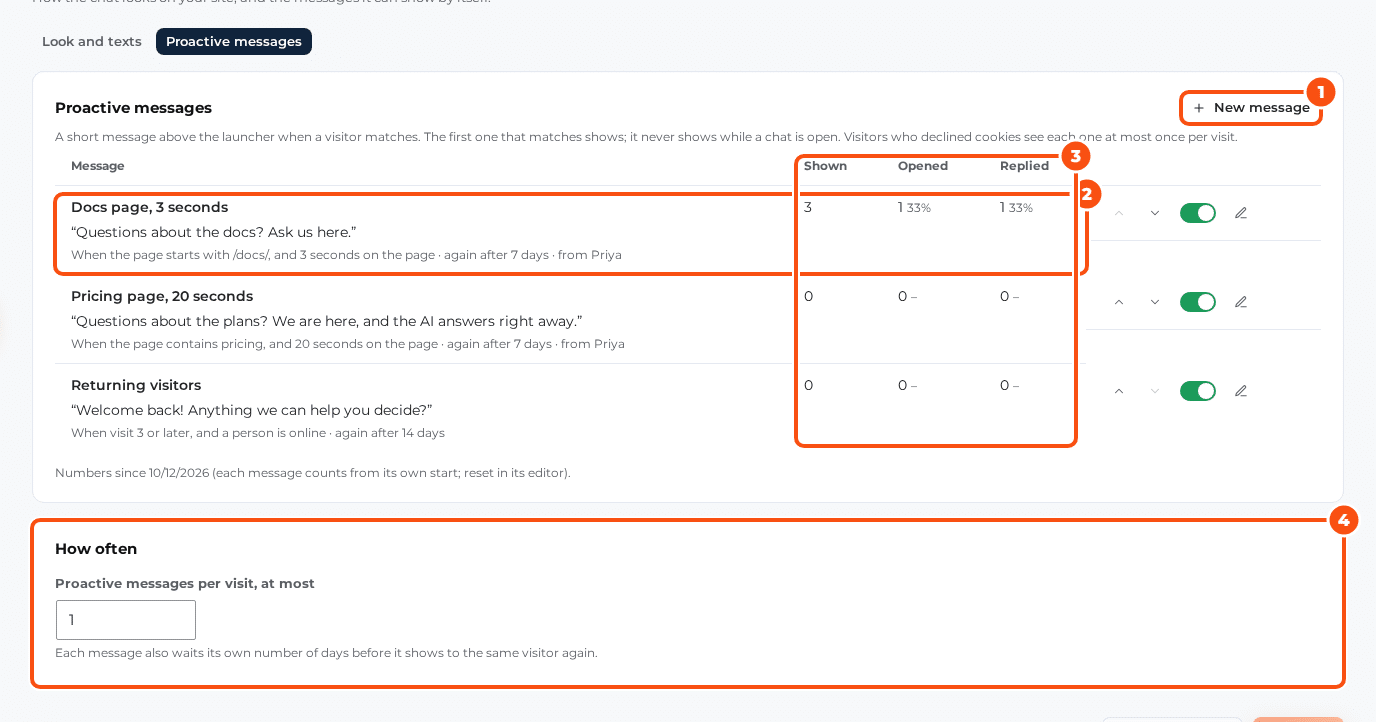
A proactive message opens the chat by itself with a message of yours. They are under Live chat › Widget › Proactive messages; click New proactive message. When the inbox serves several websites, Show on picks the website a message belongs to.
For each message, set:
- Name (only you see it) and the Message.
- From: a person on your team (first name and initials, never a photo), The team (no name) or The AI assistant.
- When it shows, from these conditions (all must match):
| Condition | Example |
|---|---|
| Page address | contains, starts with, is exactly, or does not contain /pricing/ |
| Seconds on the page | 30 |
| Visit number, at least | 2 (a returning visitor) |
| Cart value, at least | 100 (needs WooCommerce or Easy Digital Downloads) |
| Device | Computer or Phone |
| Logged in | Yes or No |
| Who can answer | A person is online, or a person or the AI |
- Show again after (days): how long the same visitor waits before seeing this message again.
Under How often, Proactive messages per visit, at most (1 by default, up to 5) caps how many a visitor sees in one visit. Move a message up or down to set the order in which they are checked.
The counts next to each message show how many visitors saw it, opened it and replied, so you can see which ones bring chats.