
Sales Igniter Chat: the inbox
Every chat, email reply and AI conversation lands in one inbox under Live chat › Inbox. The list is on the left, the conversation in the middle and the person on the right: who they are, what they bought and the pages they looked at this visit. Until the setup is done, administrators also see a Setup checklist in the inbox, with a link to each step.
The views
- All open, Mine, AI (the AI Chatbot is answering), Waiting (waiting for a person), Email, Snoozed, Resolved and Rated good. Counts show next to each view.
- The filter button narrows a view; New view saves your own view with its filters.
- The search box finds people, messages and emails.
Click a chat to open it. A chat the AI is answering shows AI answering, and Take over at the top: replying takes over, the AI stops at once, and you can hand the chat back to the AI at any time.
Assign, resolve and snooze
- Assign gives the chat to you, to another operator, or to nobody (back to the queue). New chats are shared out by your routing (see Routing, office hours and ratings).
- Resolve (the tick) closes the chat; it reopens when the visitor writes again. If you ask for ratings, the visitor is asked “How was this chat?”.
- Snooze hides the chat until a time (1 hour, tomorrow 09:00 and more) or until the visitor replies.
- When someone else is already replying, you are asked before your reply goes out, so a visitor never gets two answers at once (Settings › Operators).
To act on many chats at once, tick them in the list: Resolve (or Reopen), Snooze, Assign, Mark read and, for managers, Delete.
The reply box
- Reply writes to the visitor; Private note writes to your team only. A note never reaches the visitor.
- Send as: Auto sends in the chat while the visitor is online and by email when they have left (the reply box then says Email (offline)); Chat only never emails.
- Enter sends, Shift+Enter starts a new line, Ctrl+Enter sends and resolves.
- The paperclip attaches files. The sparkle button asks the AI to suggest a reply from your docs (see The AI Chatbot), and Summarise for the team at the top posts a short summary as a private line.
Typed at the start of the reply box:
| Type | What happens |
|---|---|
! and a word | Picks a saved reply, for example !deposit |
? and words | Searches your help docs; pick one and its link goes into the reply |
/note and text | Sends the text as a private note |
/snooze 4h | Snoozes the chat (also tomorrow, monday or reply) |
/remind tomorrow call back | Sets a reminder for you, with an optional note |
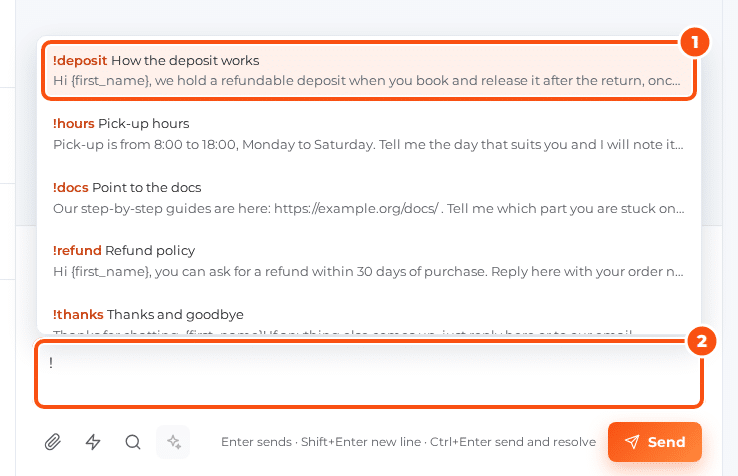
Saved replies
Answers you type often live under Saved replies: a shortcut, a title and the text. Anyone can keep their own; shared ones, which everyone sees, need the silc_manage_chats capability. These placeholders are filled in when you insert a reply:
| Placeholder | Becomes |
|---|---|
{first_name}, {name} | The visitor’s first name or full name |
{email} | The visitor’s email address |
{agent}, {agent_full} | Your first name or full name |
{ref} | The conversation’s reference |
{page} | The page the visitor is on |
{site} | Your site’s name |
The command palette
Press Ctrl+K (or Cmd+K on a Mac) anywhere in the app to go to a screen, find a conversation or act on the open one.
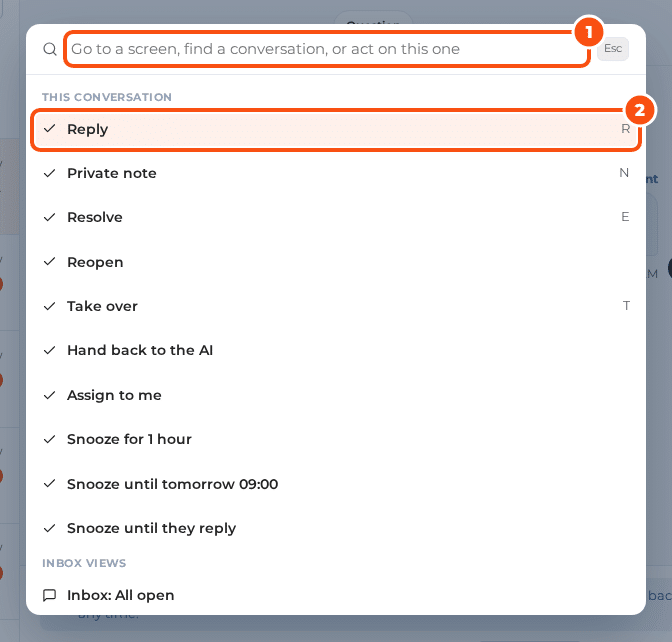
Keys in the inbox (when you are not typing):
| Key | Does |
|---|---|
J / K | Next / previous conversation |
R / N | Write a reply / a private note |
E | Resolve |
T | Take over from the AI |
S | Snooze |
X | Select the conversation (Shift+X selects a range) |
/ | Search |
The person on the right
The side pane shows the person’s name, email and WordPress account, whether they are online, their device and location, the conversation’s reference and the first contact. Below are their purchases (see WooCommerce and EDD purchases in the chat) and Pages this visit. Full profile opens everything you know about them, with their conversations, visits, facts the team noted and, for administrators, Export data and Delete person.
Contacts in the rail lists everyone you know, searchable. Managers can merge two people into one and block a person.
One person, two records
The same person can end up as two records, for example after chatting from a phone and from a laptop. The chat joins them by itself only when both records have proven the email address: a code entered in the chat, a link we emailed that was opened on the same browser, or an email that passed DMARC on a record made from email. A WordPress or WooCommerce registration is not proof, and a typed email never joins records. The rest is for your team to decide:
- Same email as and the other record’s name, with Merge?, shows on a contact’s page when another live record has the same address. Merge… opens the Merge dialog with that record picked and says in plain words what each record proved (“proved it with a code we emailed”, “only typed it (not proven)”, “has a WordPress account”).
- The Possible duplicates tab in Contacts lists the records whose email another live record has too.
- When the chat joins two records by itself, the contact gets a private note, “Joined automatically with” the other record and why: the person entered the code emailed to the same address, both had proven the same address, or they signed in to their account on a browser where they had entered the code. A chat from before someone signed in joins their account without a note. Every automatic join is in the audit log.
Only people who may merge contacts (silc_manage_chats, administrators by default) see the prompt and the tab.